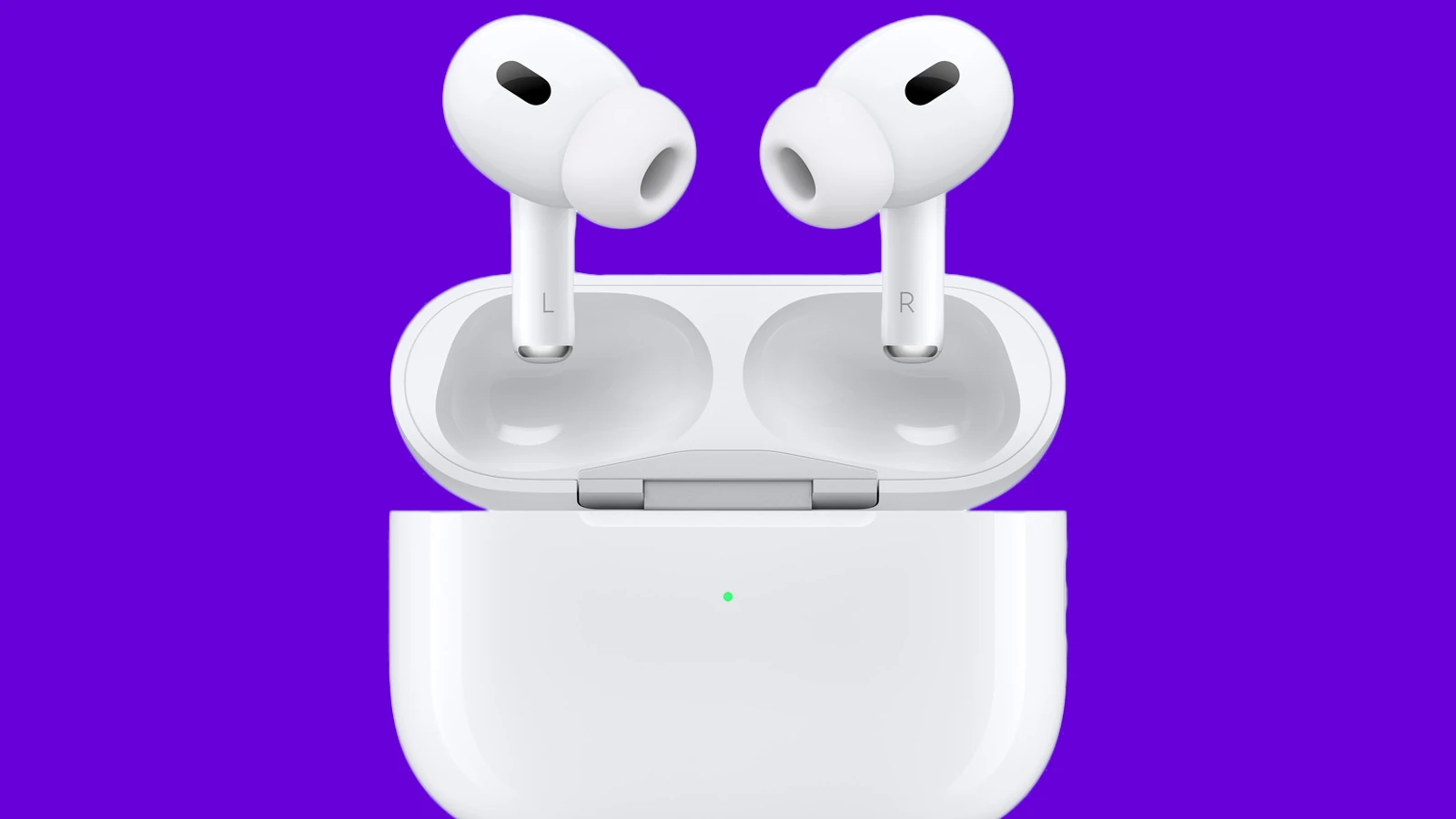
Are your AirPods too quiet? It’s a common issue many Apple users face when trying to enjoy music, podcasts, or calls. Whether you’re using standard AirPods, AirPods Pro, or AirPods Max, there are several simple ways to boost their volume and enhance your listening experience. The quickest fix is often found in your iPhone’s Accessibility settings, where you can enable Headphone Accommodations to customize and amplify your audio output.
Many people don’t realize that their AirPods’ low volume might be caused by settings on their device rather than the earbuds themselves. For instance, the “Reduce Loud Sounds” feature or Low Power Mode can limit volume levels. Adjusting these settings can make a significant difference in how loud your AirPods can get. There are also specific sound effect volumes you can adjust to improve overall audio performance.
How to Make Your AirPods Louder
Are your AirPods not as loud as you’d like them to be? You’re not alone. Many AirPods users experience issues with volume levels that seem too quiet, even when turned all the way up. The good news is that most potential problems are pretty simple to solve—the volume might not even be the real issue (source: SoundGuys)!
This comprehensive guide will walk you through multiple solutions to boost your AirPods’ volume and improve your listening experience.
Quick Fixes: Start Here
1. Turn Up the Volume (Yes, Really!)
The easiest way to make your AirPods louder is to ensure that the volume is turned up (source: Lifehacker). This might seem obvious, but there are several places to check:
On Your iPhone:
- Press the volume up button on the side of your device
- Use the volume slider in Control Center (swipe down from top-right on Face ID iPhones, or swipe up from bottom on older models)
- Check the volume while audio is playing for accurate adjustment
On Your Mac:
- Click the volume icon in the menu bar
- Use the F12 key or volume up button on your keyboard
- Open System Settings > Sound to adjust output volume
Using Siri:
- Say “Hey Siri, turn up the volume”
- Specify a percentage: “Hey Siri, set volume to 80%”
On Apple Watch:
- Use the Digital Crown to adjust volume
- Swipe up for Control Center and use the volume slider
2. Check Your Volume Limit Settings
iOS has a built-in volume limit feature that may be restricting your AirPods’ maximum volume (source: Mac Observer):
On iPhone (iOS 14 and later):
- Open Settings
- Go to Sounds & Haptics (or just Sounds)
- Tap Headphone Safety
- Toggle off Reduce Loud Sounds or adjust the decibel limit higher
- If it’s on, the slider shows your current maximum volume level
On iPhone (iOS 13 and earlier):
- Open Settings
- Go to Music
- Tap Volume Limit
- Adjust the slider to maximum or turn it off
Note: Apple recommends keeping some volume limiting enabled to protect your hearing, but you can adjust it to suit your needs.
Clean Your AirPods
One of the most common reasons for quiet AirPods is accumulated earwax, dirt, and debris blocking the speaker mesh (source: iDownloadBlog).
Proper Cleaning Method:
What You’ll Need:
- Soft, lint-free cloth (microfiber works best)
- Cotton swabs or Q-tips
- Soft-bristled brush (like a clean toothbrush)
- Isopropyl alcohol (70% or less)
- Blu-Tack or adhesive putty (optional)
Cleaning Steps:
- Clean the Speaker Mesh:
- Gently brush the speaker grilles with a soft, dry brush
- Use circular motions to dislodge debris
- For stubborn buildup, press Blu-Tack gently against the mesh and pull away
- Never insert anything into the speaker openings
- Clean the Exterior:
- Dampen (don’t soak) a cloth with isopropyl alcohol
- Wipe down the exterior of the AirPods
- Avoid getting moisture in any openings
- Clean AirPods Pro Tips:
- Remove the silicone tips from AirPods Pro
- Rinse tips with water (tips only, not the AirPods themselves)
- Dry completely before reattaching
- Check that tips are properly seated
- Clean the Charging Case:
- Wipe down the inside and outside with a dry cloth
- Use a cotton swab for tight spaces
- Keep charging contacts clean
Cleaning Frequency: Clean your AirPods every 1-2 weeks for optimal performance.
Adjust Audio Balance Settings
If one AirPod sounds quieter than the other, your audio balance may be off-center (source: Mac Observer):
On iPhone:
- Open Settings
- Go to Accessibility
- Tap Audio/Visual
- Check the Balance slider
- Ensure it’s centered between Left (L) and Right (R)
- If it’s off-center, drag it to the middle
On Mac:
- Open System Settings (or System Preferences)
- Click Sound
- Click the Output tab
- Check the Balance slider
- Center it between left and right
Disable Sound Check and EQ Settings
Apple’s Sound Check and equalizer settings can sometimes reduce overall volume levels.
Turn Off Sound Check:
On iPhone:
- Open Settings
- Tap Music
- Toggle off Sound Check
On Mac:
- Open the Music app
- Go to Music > Settings (or Preferences)
- Click the Playback tab
- Uncheck Sound Check
Adjust or Disable EQ:
On iPhone:
- Open Settings
- Tap Music
- Tap EQ
- Try different presets to see which sounds loudest
- Late Night preset often provides the best volume boost
- Or select Off to disable EQ entirely
On Mac:
- Open the Music app
- Go to Music > Settings > Playback
- Change the EQ dropdown to Off or try different presets
Calibrate Your AirPods Volume
Sometimes the volume calibration between your iPhone and AirPods gets out of sync. Here’s how to recalibrate (source: iDownloadBlog):
- With AirPods connected, turn the volume all the way down to zero
- Disconnect your AirPods (put them in the case)
- Play audio through your iPhone’s speakers
- Turn the iPhone volume all the way down to zero
- Reconnect your AirPods
- Play audio through your AirPods
- Slowly turn the volume back up
This process resets the volume synchronization between devices.
Customize Audio Settings (AirPods Pro & AirPods Max)
AirPods Pro and AirPods Max have additional audio customization features that can affect perceived loudness.
Headphone Accommodations:
- Open Settings on your iPhone
- Go to Accessibility
- Tap Audio/Visual
- Select Headphone Accommodations
- Toggle it On
- Choose Balanced Tone, Vocal Range, or Brightness
- Adjust the level slider
- These settings can make audio clearer and seemingly louder
Adaptive Audio & Transparency Mode:
For AirPods Pro (2nd generation) and later:
- Adaptive Audio automatically adjusts noise control based on your environment
- If music sounds too quiet, ensure you’re in the right listening mode
- Switch between Active Noise Cancellation, Transparency, and Adaptive Audio
- Press and hold the stem of your AirPod to cycle through modes
Conversation Awareness:
If you have AirPods Pro (2nd gen):
- Conversation Awareness automatically lowers volume when you start speaking
- This feature might be making your audio quieter than expected
- To disable: Settings > [Your AirPods] > Conversation Awareness (toggle off)
Check for Software Updates
Outdated firmware can cause various audio issues, including volume problems:
Update Your AirPods:
- Place AirPods in their charging case
- Connect the case to power
- Keep your iPhone nearby with Bluetooth enabled
- AirPods update automatically when conditions are met
- To check firmware: Settings > Bluetooth > (i) next to your AirPods
- Look for the Firmware Version
Update Your iPhone:
- Open Settings
- Go to General > Software Update
- Download and install any available updates
Update Your Mac:
- Open System Settings (or System Preferences)
- Click General > Software Update
- Install any available updates
Reset Your AirPods
If nothing else works, resetting your AirPods can resolve many issues (source: PC Mag):
How to Reset AirPods:
- Put both AirPods in their charging case
- Close the lid and wait 30 seconds
- Open the lid
- On your iPhone, go to Settings > Bluetooth
- Tap the (i) icon next to your AirPods
- Tap Forget This Device and confirm
- With the case lid open, press and hold the setup button on the back of the case
- Hold for about 15 seconds until the status light flashes amber, then white
- Place the case near your iPhone
- Follow the on-screen instructions to reconnect
Adjust Volume in Specific Apps
Some apps have their own volume controls that are independent of your system volume:
Spotify:
- Check the in-app volume slider
- Disable “Normalize Volume” in Settings > Playback
YouTube:
- Adjust the video player’s volume slider
- Check that it’s not muted within the app
Podcasts:
- Some podcast apps have separate volume controls
- Check the app’s playback settings
Video Players:
- Ensure the video’s volume isn’t turned down
- Some players have volume settings separate from system volume
Get the Right Fit (AirPods Pro)
For AirPods Pro, proper fit is crucial for sound quality and perceived volume (source: Tech Radar):
Ear Tip Fit Test:
- With AirPods Pro in your ears, open Settings
- Tap your AirPods name
- Select Ear Tip Fit Test
- Tap Continue and play the test
- The test will tell you if you have a good seal
- Try different size tips if needed (Small, Medium, Large)
Why This Matters: A proper seal is essential for bass response and overall volume. Poor fit allows sound to leak out, making your AirPods seem quieter.
Third-Party Ear Tips:
Consider aftermarket ear tips like:
- Comply Foam Tips
- SpinFit tips
- Memory foam alternatives
These can provide a better seal and improved sound isolation, making your AirPods seem louder.
Use Volume Boost Apps (Use With Caution)
Important Warning: Boosting volume beyond safe levels can damage your hearing. Use these methods carefully.
Third-Party Apps:
Some apps claim to boost volume beyond normal limits, but Apple’s restrictions on iOS make true system-wide volume boosting difficult. Most “volume booster” apps for iPhone are limited in effectiveness.
Mac Users:
On Mac, you can use apps like:
- Boom 3D: System-wide volume booster and equalizer
- eqMac: Free open-source equalizer
- Sound Control: Advanced audio management
These work better on Mac than iOS due to fewer system restrictions.
Key Takeaways
- Enable Headphone Accommodations in Accessibility settings to customize audio and increase AirPods volume.
- Check if features like “Reduce Loud Sounds” or Low Power Mode are limiting your AirPods’ maximum volume.
- Clean your AirPods regularly and update your device software to ensure optimal audio performance.
Optimizing Device Settings for Louder AirPods
Getting the most volume from your AirPods requires adjusting several settings on your iPhone or iPad. These simple tweaks can significantly improve audio output without damaging your device or headphones.
Adjusting AirPods Audio through the Control Center
The Control Center offers quick access to AirPods volume controls. To access it, swipe down from the top-right corner on newer iPhones or up from the bottom on older models. When AirPods are connected, a long press on the audio playback card reveals additional options.
Users can adjust volume directly using the slider. For quicker adjustments, the volume up button on the side of the iPhone works while listening to audio.
Siri can also help increase volume with simple voice commands like “Hey Siri, increase the volume” or “Hey Siri, make it louder.” This hands-free option is particularly useful during activities when touching the device is inconvenient.
Some audio apps have their own volume controls that work independently from the system volume, so check both settings for maximum output.
Ensuring Volume Limits Are Not Restricting Sound
iPhones and iPads often have built-in volume limits that protect hearing but may restrict how loud AirPods can get. To check if these limits are active, go to Settings > Sounds & Haptics > Headphone Safety.
If “Reduce Loud Sounds” is enabled, the system automatically lowers volume when it exceeds the set decibel level. Turning this off or adjusting the slider can allow for louder audio output.
The Music app has separate volume normalizing features that might limit loudness. Go to Settings > Music and turn off Sound Check, which balances the volume across different tracks.
EQ settings can also affect volume. For maximum loudness, either turn off EQ completely or select the “Late Night” preset, which compresses the dynamic range and makes quieter sounds louder.
Using Accessibility Features for Better Audio Control
Apple devices offer powerful accessibility options that can enhance AirPods volume. Navigate to Settings > Accessibility > Audio & Visual to access these features.
The Balance slider adjusts sound distribution between left and right ears. Setting it to center ensures maximum volume output from both AirPods. If one AirPod seems quieter than the other, this setting can help balance them.
For AirPods Pro and AirPods Max users, customizing Transparency mode can enhance perceived loudness. These settings allow ambient noise to be filtered selectively, making your audio content stand out better.
Mono Audio is another useful feature that combines both audio channels, which can help when you’re only wearing one AirPod or have hearing differences between ears.
Troubleshooting Common AirPods Volume Issues
Low volume is one of the most frustrating problems AirPods users face. Several factors can cause this issue, from simple software settings to hardware problems that require professional attention.
Performing an Ear Tip Fit Test for AirPods Pro
AirPods Pro users experiencing low volume should start with the Ear Tip Fit Test. This test ensures the ear tips create a proper seal, which is crucial for optimal sound quality and volume.
To run the test:
- Connect AirPods Pro to an iPhone
- Go to Settings > Bluetooth
- Tap the “i” icon next to AirPods Pro
- Select “Ear Tip Fit Test”
- Follow on-screen instructions
If the test shows a poor seal, try different sized ear tips. Apple includes small, medium, and large options with every AirPods Pro purchase. A proper seal not only improves volume but enhances noise cancellation too.
Users with AirPods Pro 2 benefit from improved acoustic architecture that delivers clearer sound, but they still require proper fitting.
Resolving Uneven Volume and One AirPod Quieter Problems
When one AirPod is quieter than the other, several fixes can help. This common issue often has simple solutions.
First, check for earwax or debris blocking the speaker mesh. Clean gently with a dry cotton swab or soft brush. Never use sharp objects or liquids that could damage the speakers.
To address balance issues:
- Go to Settings > Accessibility > Audio/Visual
- Adjust the balance slider to center
If one AirPod remains quieter, try resetting them:
- Place AirPods in case and close lid
- Wait 30 seconds, then open lid
- On iPhone, go to Settings > Bluetooth
- Tap “i” next to AirPods
- Select “Forget This Device”
- Press and hold setup button on case until light flashes white
- Reconnect to your device
Fixing Software Glitches That Affect Volume
Software settings often cause low AirPods volume. Several iPhone settings can limit your AirPods without you realizing it.
Check these settings:
- Headphone Safety: Go to Settings > Sounds & Haptics > Headphone Safety and toggle off “Reduce Loud Sounds”
- Low Power Mode: This can restrict volume to save battery. Turn it off in Settings > Battery
- Volume Limit: Go to Settings > Music > Volume Limit and ensure it’s turned off
Software updates matter too. Outdated iOS or AirPods firmware can cause volume issues. Check for updates in Settings > General > Software Update for iOS and connect AirPods to a charging iPhone to trigger firmware updates.
Restarting devices often fixes temporary glitches. Turn off both your iPhone and AirPods, then power them back on to reset connections.
Addressing Hardware Challenges and Where to Get Professional Help
When software solutions fail, hardware problems may be the culprit. Physical damage from drops or water exposure can affect AirPods’ volume capabilities.
Battery health impacts performance too. As AirPods age, their batteries degrade, sometimes causing lower volume output. AirPods typically last 2-3 years before significant battery deterioration.
For professional assistance:
- Apple Store: Schedule a Genius Bar appointment for expert diagnosis
- Apple Support: Contact via phone, chat, or the Support app
- Authorized Service Providers: Third-party repair shops certified by Apple
When visiting Apple, bring both AirPods and the charging case. Replacement costs vary based on warranty status and AppleCare+ coverage. Out-of-warranty replacements can cost $69-$89 per AirPod.
If an AirPod is lost, use the Find My app to locate it before seeking replacement options.
Frequently Asked Questions
AirPods users often struggle with volume issues. These common questions address specific ways to increase volume, troubleshoot quiet AirPods, and optimize sound output across different AirPods models.
How can I increase the volume of my AirPods through iOS settings?
iOS offers several ways to make AirPods louder. Users can access volume controls by pressing the volume buttons on their iPhone or iPad while AirPods are connected.
For additional options, go to Settings > Accessibility > Audio/Visual and adjust the Balance slider to ensure it’s centered. This ensures sound is distributed equally to both AirPods.
iOS also offers volume limit settings. Check if volume limits are accidentally enabled by going to Settings > Sounds & Haptics > Headphone Safety and making sure “Reduce Loud Sounds” is turned off.
What are some effective hacks to make AirPods louder?
Cleaning AirPods regularly can significantly improve volume. Use a soft, dry cloth to wipe the exterior and a small brush or cotton swab to carefully clean the speaker grilles.
Using Siri is another convenient method. Simply say “Hey Siri, increase the volume” or “Hey Siri, maximum volume” while wearing your AirPods.
Apple Watch owners can adjust AirPods volume by opening Now Playing and turning the Digital Crown. This works well with AirPods Pro or AirPods 3 and later.
Is there a way to amplify AirPods’ volume beyond the maximum limit?
While Apple sets volume limits for safety reasons, some third-party apps can enhance perceived loudness without exceeding healthy listening levels. EQ apps can boost specific frequencies that make audio seem louder.
On iPhone, try adjusting the EQ settings. Go to Settings > Music > EQ and select “Late Night” mode, which compresses the dynamic range to make quiet sounds louder and loud sounds quieter.
Remember that attempting to exceed Apple’s maximum volume limits could potentially damage your hearing or the AirPods themselves.
What could be the reason my AirPods are very quiet even at full volume?
The most common reason for quiet AirPods is dirt or earwax buildup on the speaker grilles. Regular cleaning can resolve this issue.
Connection problems may also cause low volume. Try resetting your AirPods by placing them in the case, holding the setup button until the light flashes amber, then reconnecting to your device.
Check if “Low Power Mode” is enabled on your iPhone, as this can sometimes affect audio performance. Also verify that both AirPods are equally clean, as one quiet AirPod can reduce overall perceived volume.
Are there any recent updates that address low volume issues in AirPods?
Apple has released firmware updates that address various performance issues, including volume optimization for different AirPods models.
To check if your AirPods are running the latest firmware, connect them to your iPhone, go to Settings > Bluetooth, tap the “i” next to your AirPods, and check the firmware version.
Apple doesn’t provide a manual update method for AirPods firmware. Updates install automatically when AirPods are in their case, charging, and near your paired iOS device with an internet connection.
How do I ensure my AirPods Max are producing the loudest possible sound?
AirPods Max have specific volume controls that differ from other AirPods models. The Digital Crown on the right ear cup can be rotated to adjust volume levels precisely.
Check the AirPods Max for debris or dust around the ear cushions which might affect sound delivery. The cushions can be removed and cleaned according to Apple’s guidelines.
Ensure Active Noise Cancellation is enabled for optimal volume perception. Press the noise control button on the AirPods Max or use Control Center on your iPhone to switch between ANC and Transparency modes.