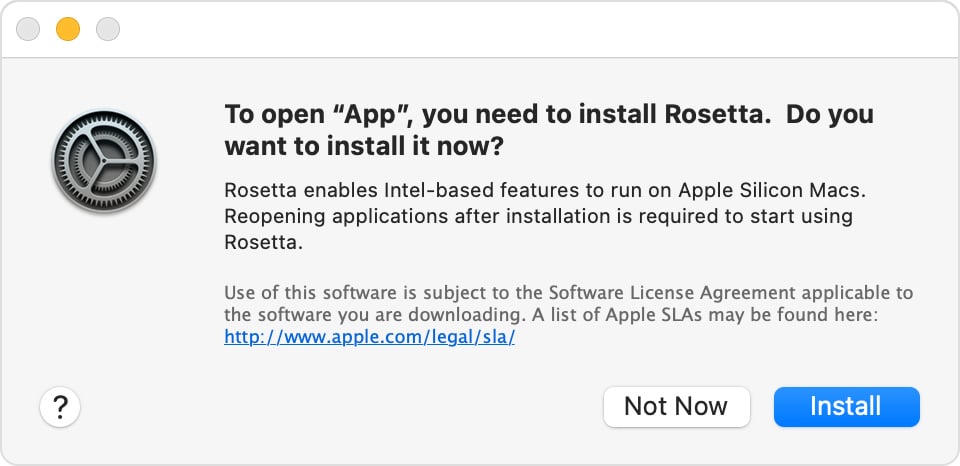
Have you noticed a pop-up asking to install Rosetta when trying to run certain apps on your new Mac? If you’ve recently switched to a Mac with Apple silicon, you might be wondering what Rosetta is and why you need it. Rosetta 2 is a translation layer developed by Apple that allows apps built for Intel processors to run on newer Macs with Apple silicon chips.
Rosetta 2 enables your Mac with Apple silicon to use apps that were originally designed for Intel-based Macs, ensuring compatibility across different processor architectures. It works invisibly in the background, translating Intel x86 instructions into ARM instructions that Apple silicon can understand. This clever technology means you don’t have to wait for developers to update their apps or lose access to your favorite software.
The best part about Rosetta 2 is that it’s designed to be seamless and efficient. While there might be a slight performance impact for some intensive applications, most users won’t notice any difference in day-to-day tasks. Apple has made significant improvements compared to the original Rosetta (used during the PowerPC to Intel transition), making this version faster and more transparent to the average user.
Key Takeaways
- Rosetta 2 is a translation layer that allows Intel-based Mac apps to run on Apple silicon Macs without modification.
- Installation happens automatically when needed and doesn’t noticeably slow down your Mac for most everyday applications.
- Apple designed Rosetta 2 as a temporary solution while developers transition their apps to natively support Apple silicon.
Understanding Rosetta on Mac
Rosetta on Mac is a crucial technology that helps older apps run on newer Apple computers with different processors. It serves as a bridge between different chip architectures, making the transition smoother for users and developers alike.
The Evolution of Rosetta
Rosetta first appeared in 2006 when Apple switched from PowerPC to Intel processors. This original version helped Mac users run PowerPC apps on the new Intel machines without modification.
In 2020, Apple introduced Rosetta 2 for their transition from Intel to Apple Silicon. This new version is significantly more advanced than its predecessor. While the original Rosetta translated instructions one by one during runtime, Rosetta 2 uses an ahead-of-time approach for better performance.
The name “Rosetta” comes from the famous Rosetta Stone that helped decipher Egyptian hieroglyphics. Like its namesake, Apple’s Rosetta translates between two different “languages” – in this case, instruction sets for different computer processors.
How Rosetta Works
Rosetta 2 functions as a dynamic binary translator between Intel’s x86-64 and Apple’s ARM architecture. When a user first launches an Intel-based app on an Apple Silicon Mac, Rosetta 2 quickly translates the app’s instructions.
This translation happens through an ahead-of-time (AOT) process. Instead of translating each instruction as the app runs, Rosetta 2 converts the entire application before it starts. This makes subsequent launches much faster.
The translation is remarkably efficient. Most users won’t notice Rosetta 2 working in the background, except for perhaps a slight delay when first launching an Intel app. The performance impact is minimal for most applications, though complex software might run slightly slower than native apps.
Rosetta and Apple Silicon
Apple Silicon represents a fundamental shift in Mac computing. These ARM-based processors offer better performance and energy efficiency than their Intel counterparts. Rosetta 2 makes this transition practical by ensuring compatibility with existing software.
For users, Rosetta 2 installs automatically when needed. If you try to run an Intel app on an M1, M2, or other Apple Silicon Mac, the system will prompt you to install Rosetta if it’s not already present.
Developers can create Universal Binary apps that contain code for both Intel and Apple Silicon architectures. These apps run natively on either type of Mac without needing Rosetta. As more developers update their software, the need for Rosetta will gradually decrease, though Apple has committed to supporting it for the foreseeable future.
Installing and Using Rosetta
Rosetta 2 is a translation layer that allows Macs with Apple silicon to run apps designed for Intel processors. The installation process is straightforward, and once installed, it works seamlessly in the background.
How to Install Rosetta
When you first attempt to open an Intel-based application on an Apple silicon Mac, the system will automatically prompt you to install Rosetta 2. A dialog box will appear asking, “Do you want to install Rosetta to open this application?” Simply click “Install” and enter your administrator password if required.
For more control, you can install Rosetta manually using Terminal. Open Terminal and enter this command:
/usr/sbin/softwareupdate --install-rosetta --agree-to-license
This command installs Rosetta 2 and automatically accepts the license agreement. IT administrators can also deploy Rosetta across multiple machines using management tools by creating installation scripts.
The installation takes up minimal space on your Mac and completes within a minute or two.
Running Intel-based Applications
After installation, Rosetta 2 works automatically when needed. When you launch an Intel-based app, Rosetta translates the instructions into commands that your Apple silicon processor can understand.
For most applications, this translation happens invisibly with minimal performance impact. The first time you open an Intel app, it might take slightly longer to launch as Rosetta performs initial translations.
To check if an app is Intel-based or Universal:
- Find the app in Finder
- Right-click and select “Get Info”
- Look under “Kind” – it will say either “Application (Intel)” or “Application (Universal)”
You can force an app to use Rosetta by right-clicking it, selecting “Get Info,” and checking the “Open using Rosetta” option.
Integration with macOS
Rosetta 2 integrates deeply with macOS, making the transition between Intel and Apple silicon apps nearly invisible to users. Most users won’t need to think about whether an app is native or translated.
Universal apps contain code for both Intel and Apple silicon processors. These apps automatically use the appropriate code path without needing Rosetta. Over time, more developers are creating Universal or native Apple silicon versions of their software.
Rosetta 2 also supports plugins, drivers, and other software components that were built for Intel Macs. This ensures compatibility with a wide range of peripherals and software extensions.
Performance is impressive—many translated apps run just as fast or sometimes even faster than they did on Intel Macs, though complex applications may experience some slowdown.
Performance Implications
Rosetta’s translation of Intel-based apps on Apple Silicon Macs affects performance in several ways. While Apple has optimized this technology to be remarkably efficient, users should understand the tradeoffs between running native and translated applications.
Rosetta vs. Native Applications
When running Intel-based apps through Rosetta 2, users can expect approximately 78-79% of the performance compared to native Apple Silicon applications. This performance gap varies depending on the specific app and tasks being performed.
Native apps designed specifically for Apple Silicon will always offer the best performance and energy efficiency. They take full advantage of the M-series chips’ architecture without requiring any translation layer.
For everyday tasks like web browsing, document editing, or media consumption, the performance difference may be barely noticeable. However, for demanding workloads such as video rendering, 3D modeling, or complex computational tasks, the performance gap becomes more pronounced.
Apps that require intensive CPU operations generally show the biggest difference between Rosetta and native versions.
Impact on Mac with Apple Silicon
Rosetta 2 only activates when needed for Intel-based applications. It does not run constantly in the background or affect the performance of native apps.
When using a mix of native and Intel-based apps, only the Intel apps experience any performance impact. Your system remains responsive and efficient while using native applications.
Battery life may be slightly reduced when running Intel apps through Rosetta due to the additional computational overhead. The translation process requires extra energy, making native apps more power-efficient.
Apple Silicon Macs still typically outperform their Intel predecessors even when running apps through Rosetta 2, which speaks to the impressive efficiency of both the M-series chips and the translation technology.
Understanding Binary Translation
Rosetta 2 uses a combination of ahead-of-time and just-in-time binary translation methods to convert Intel x86-64 instructions to ARM instructions.
The first time you launch an Intel app, Rosetta performs most of the translation work and caches the results. This initial launch may take slightly longer, but subsequent launches are much faster since the translation has already been completed.
Unlike traditional emulation which interprets code line-by-line at runtime, Rosetta’s translation approach delivers significantly better performance. It analyzes entire blocks of code and optimizes them for the ARM architecture.
This advanced translation technology represents years of Apple’s experience with processor transitions. It builds on the original Rosetta used during the PowerPC to Intel transition, but with substantial improvements for better performance.
Development and Compatibility
Rosetta serves as a crucial bridge between Intel-based Mac applications and Apple Silicon hardware. Developers face several considerations when creating compatible software for both platforms during Apple’s processor transition.
Building Apps for Rosetta and Apple Silicon
Developers have multiple options when creating Mac apps during this transition period. They can build apps specifically for Intel processors that run through Rosetta 2 translation, create native Apple Silicon apps, or develop universal binaries that work on both architectures.
MacOS Big Sur introduced the foundation for this compatibility layer. When developing for both platforms, programmers must test their applications thoroughly on each architecture. Many development tools now support building universal binaries with a simple checkbox option.
Some programming languages and frameworks required updates to fully support Apple Silicon. Swift and Xcode received enhancements to streamline the development process across both processor types.
Plugin and Extension Compatibility
Plug-ins and extensions present unique challenges in the Rosetta environment. These components must match the architecture of their host application to function properly.
When a host app runs through Rosetta, its plugins must be Intel-compatible. Conversely, native Apple Silicon apps require plugins built for ARM architecture. This creates complications for apps that rely heavily on third-party extensions.
Kernel extensions face stricter limitations, as they must be specifically built for the system architecture. Apple has been gradually moving away from kernel extensions toward System Extensions, which offer better security and compatibility.
Many developers have updated their plugins to universal binary format to ensure seamless operation regardless of how the host application runs.
Embracing Universal Applications
Universal apps represent the ideal solution during this transition period. These applications contain code for both Intel and Apple Silicon architectures in a single package.
When a user launches a universal app, macOS automatically selects the appropriate code path based on the Mac’s processor. This approach eliminates the need for Rosetta translation, providing optimal performance on both platforms.
Creating universal apps requires minimal additional effort for many developers. The resulting binary is larger but ensures the best experience for all users. iOS apps can now run natively on Apple Silicon Macs without modification, expanding the software ecosystem.
Many major applications have already adopted the universal binary approach, including productivity suites, creative tools, and utilities. This transition mirrors Apple’s previous processor migrations, where universal binaries eased user and developer experiences.
Frequently Asked Questions
Here are answers to common questions about Rosetta on Mac computers. These cover installation, necessity, security, cost, and compatibility topics that many Mac users wonder about.
How can I install Rosetta on my Mac?
Most Apple Silicon Mac users don’t need to install Rosetta 2 manually. When you first try to open an Intel-based app on an M1 or M2 Mac, a prompt will appear asking if you want to install Rosetta.
Simply click “Install” and enter your administrator password if requested. The installation completes quickly and requires no further action.
For IT admins who need to deploy Rosetta across multiple machines, it can be installed via Terminal using the command: softwareupdate --install-rosetta --agree-to-license.
Is Rosetta necessary for running applications not originally designed for Apple Silicon?
Yes, Rosetta 2 is essential for running Intel-based applications on Apple Silicon Macs. Without it, apps designed for Intel processors won’t work on M1, M2, or other Apple Silicon chips.
Many popular apps have been updated with native Apple Silicon versions. These run without Rosetta and typically offer better performance.
You only need Rosetta for older apps or those that haven’t been updated. The translation happens automatically in the background once Rosetta is installed.
What are the potential security implications of using Rosetta on macOS?
Rosetta 2 maintains the security features of macOS while translating Intel code to ARM instructions. Apple designed it with security in mind from the beginning.
All translated applications still run within the Mac’s security framework. This means they’re subject to the same permissions, sandboxing, and Gatekeeper protections as native apps.
The main security consideration is that Rosetta might allow you to run older software that hasn’t received recent security updates. Users should stay cautious about running outdated applications.
Can Rosetta be used free of charge, or is there a licensing fee?
Rosetta 2 is completely free for all Apple Silicon Mac users. There are no licensing fees or subscription costs associated with it.
Apple includes Rosetta 2 as part of macOS at no additional charge. It’s considered an essential system component for ensuring compatibility during the transition to Apple Silicon.
How does Rosetta 2 differ from the original Rosetta software on Mac?
The original Rosetta helped Macs transition from PowerPC to Intel processors in 2006. Rosetta 2 serves a similar purpose but for the Intel to Apple Silicon transition.
Rosetta 2 is much faster and more efficient than its predecessor. It uses ahead-of-time (AOT) translation to convert Intel code to ARM instructions before the app runs, rather than translating everything in real-time.
This improved approach means many Intel apps running through Rosetta 2 perform surprisingly well, sometimes nearly as fast as native applications.
Are there any known compatibility issues with popular applications when using Rosetta on Mac?
Most Intel-based Mac applications work properly through Rosetta 2, but there are some exceptions. Certain apps with low-level hardware access or specialized functions may experience issues.
Virtual machine software like older versions of Parallels and VMware had initial compatibility problems. Many of these have been resolved with updates.
Some professional audio plugins, specialized scientific software, and certain games may still have performance or compatibility issues when running through Rosetta 2. Always check with developers for Apple Silicon native versions when possible.