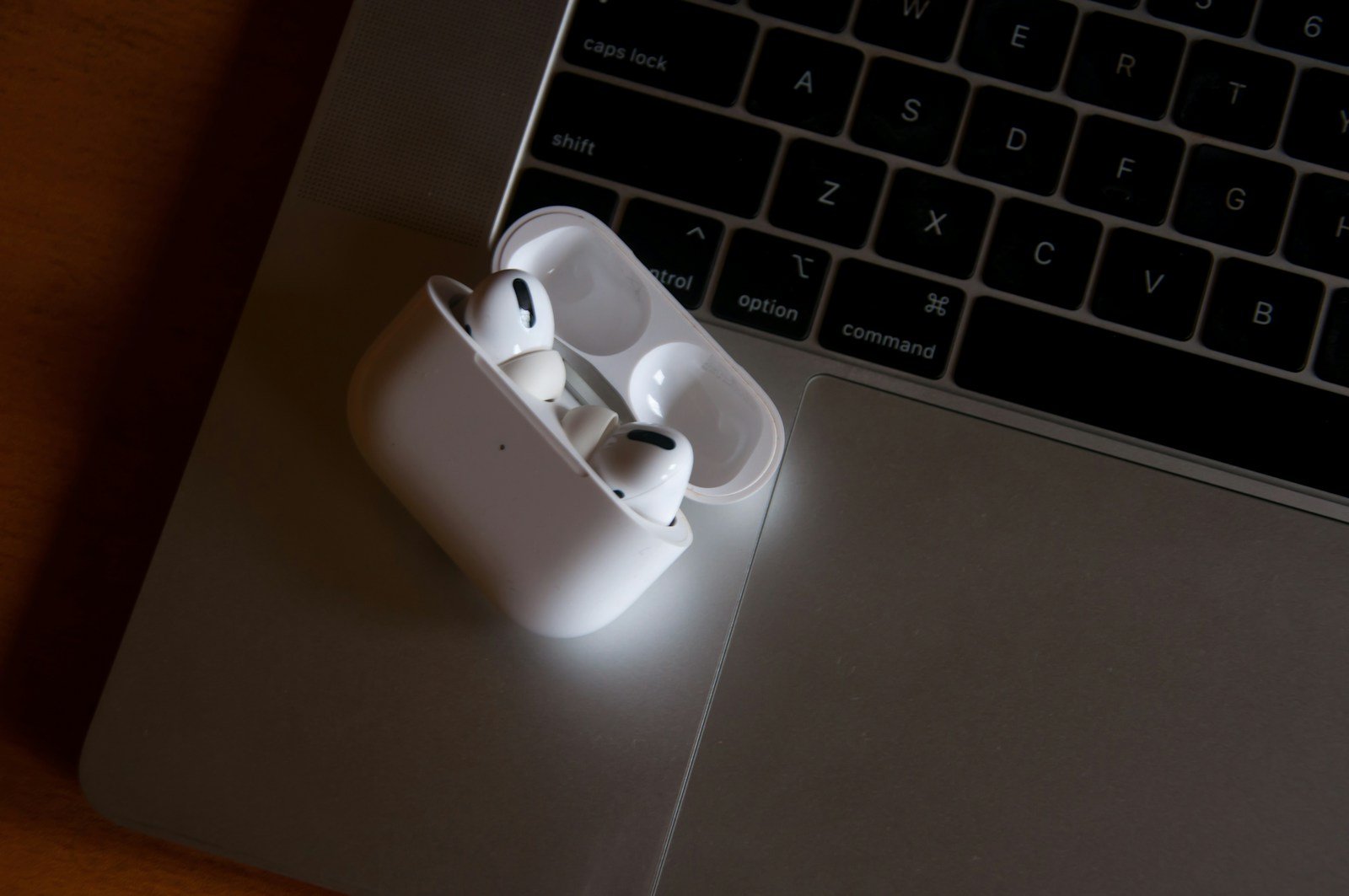
Connecting your AirPods to a laptop is simpler than you might think, regardless of whether you’re using a Mac or Windows computer. The process involves just a few steps using your device’s Bluetooth capabilities. To connect AirPods to any laptop, place them in their charging case, open the lid, press and hold the setup button until the light flashes white, then access your computer’s Bluetooth settings to complete the pairing.
The connection process varies slightly between operating systems. Mac users will find the process nearly seamless through System Settings, while Windows users need to navigate to the Bluetooth & other devices section in Settings. Once paired, your AirPods should automatically reconnect to your laptop when they’re removed from their case and within range.
How to Connect AirPods to Laptop: Step-by-Step Guide
AirPods work with both Windows and Mac laptops via Bluetooth. Here’s how to pair them:
For Windows 10/11 Laptops
Step 1: Enable Bluetooth
- Click the Start menu and go to Settings (gear icon)
- Select Devices > Bluetooth & other devices
- Toggle Bluetooth On if it isn’t already
Step 2: Put AirPods in Pairing Mode
- Place your AirPods in their charging case
- Open the lid
- Press and hold the setup button on the back of the case until the status light flashes white (source: Support Your Tech)
Step 3: Connect via Bluetooth Settings
- On your laptop, click Add Bluetooth or other device
- Select Bluetooth
- Choose your AirPods from the list of available devices
- Click Connect or Pair
Your AirPods should now be connected!
For Mac Laptops
Step 1: Open Bluetooth Settings
- Click the Apple menu > System Settings (or System Preferences on older macOS)
- Select Bluetooth
- Ensure Bluetooth is turned on
Step 2: Put AirPods in Pairing Mode
- Place AirPods in the charging case and open the lid
- Press and hold the setup button until the light flashes white
Step 3: Pair Your AirPods
- Your AirPods should appear in the Bluetooth devices list
- Click Connect next to your AirPods name
Note: If you’ve already paired your AirPods with an iPhone using the same Apple ID, they may automatically appear in your Mac’s Bluetooth menu.
Troubleshooting Common Issues
- AirPods won’t appear: Make sure they’re charged and in pairing mode with the white flashing light
- Connection drops: Move closer to your laptop and remove obstacles between devices
- Poor audio quality: Disconnect and reconnect, or update your laptop’s Bluetooth drivers
- Already connected to another device: Disconnect from your phone or other devices first (source: 4ril)
Once connected, your AirPods will work like any other Bluetooth headphones, allowing you to enjoy wireless audio on your laptop!
Key Takeaways
- Place AirPods in their case and press the setup button until the light flashes white to enter pairing mode.
- Access Bluetooth settings on your laptop and select your AirPods from the available devices list.
- Different laptop operating systems have slightly different connection paths, but all use Bluetooth technology for pairing.
Preparing Your AirPods for Connection
Before connecting your AirPods to a laptop, you need to properly prepare them for pairing. This involves checking your device settings and putting your AirPods into the right mode.
Ensuring Bluetooth Is Enabled
First, check that Bluetooth is turned on for your laptop. On Windows 10 or 11, click the Start menu and go to Settings > Devices > Bluetooth & other devices. Toggle the Bluetooth switch to the “On” position.
For Mac users, click the Apple menu in the top-left corner and select System Settings (or System Preferences on older macOS versions). Then click Bluetooth and make sure it’s enabled.
If you don’t see Bluetooth in your settings, your laptop might need updated Bluetooth drivers. Visit your computer manufacturer’s website to download the latest drivers.
Some laptops have function keys that can quickly enable or disable Bluetooth. Look for a key with a Bluetooth symbol and press it along with the Fn key.
Putting AirPods Into Pairing Mode
To put your AirPods in pairing mode, place them in their charging case. Keep the lid open.
Press and hold the setup button on the back of the case until the LED light starts flashing white. This usually takes about 3-5 seconds.
The flashing white light indicates your AirPods are now in pairing mode and ready to connect to your laptop.
Keep the AirPods case within 10-20 feet of your laptop during the pairing process for the best results.
If you’re using AirPods Pro or newer models, the process is the same – hold the button until you see the flashing light.
Troubleshooting Connectivity Issues
If your AirPods won’t connect, try resetting them. Put the AirPods in the case, close the lid, wait 30 seconds, and then open it again.
Check if your laptop has the minimum Bluetooth version required. AirPods work best with Bluetooth 4.0 or higher.
Make sure your AirPods have sufficient charge. Low battery can cause connection problems.
Try forgetting the AirPods from your Bluetooth devices list and then reconnecting them from scratch. This often resolves stubborn pairing issues.
If problems persist on Windows, try running the Bluetooth troubleshooter. Right-click the Start button, select “Troubleshoot,” and then choose “Bluetooth.”
For Mac users experiencing issues, try resetting the Bluetooth module by holding Shift + Option while clicking the Bluetooth icon in the menu bar.
Connecting AirPods to Different Laptops
AirPods can connect to various laptop brands through Bluetooth technology. The connection process varies slightly depending on whether you’re using a MacBook or Windows laptop.
Pairing AirPods with a MacBook
Connecting AirPods to a MacBook is straightforward due to Apple’s integrated ecosystem. Users should ensure their MacBook is running macOS Mojave or later for optimal performance.
To begin, they should place the AirPods in their charging case and open the lid. The MacBook will often detect the AirPods automatically if the user is signed into the same iCloud account on their other Apple devices.
If automatic detection doesn’t occur, users can click on the Bluetooth icon in the menu bar and select the AirPods from the devices list. Alternatively, they can go to System Preferences > Bluetooth and click “Connect” next to the AirPods.
Once connected, the noise control button functions can be accessed through the volume control in the menu bar. Users can switch between noise cancellation modes by clicking on this control.
Pairing AirPods with Windows Laptops
Windows PC and laptop users can also enjoy AirPods, though the pairing process requires a few more steps. The process works with various brands including HP, Dell, and other Windows computers.
First, users should put their AirPods in the charging case and open the lid. They should then press and hold the setup button on the back of the case until the status light flashes white, indicating pairing mode.
On the Windows laptop, they need to:
- Go to Settings > Bluetooth & devices
- Click “Add Bluetooth or other device”
- Select “Bluetooth” from the options
- Choose the AirPods from the list of discoverable devices
The AirPods should connect within a few seconds. Windows laptops won’t support all AirPods features, but basic audio playback and microphone functions will work properly.
Disconnecting or Removing Paired AirPods
Users may need to disconnect AirPods temporarily or remove them entirely from their laptop’s paired devices list. Both processes are simple on either operating system.
On a MacBook, temporary disconnection happens by placing AirPods back in their case or by selecting another audio output device. To fully remove the pairing, users can go to System Preferences > Bluetooth, right-click on the AirPods, and select “Remove.”
For Windows laptops, disconnecting temporarily is done through the Settings app. Users navigate to Bluetooth & devices, click on the connected AirPods, and select “Disconnect.”
To completely remove the device, they follow the same path but choose “Remove device” instead. This is useful when troubleshooting connection issues or when transferring ownership of the AirPods.
Frequently Asked Questions
Connecting AirPods to a laptop involves specific steps that vary depending on your operating system. Common issues can usually be resolved with simple troubleshooting techniques.
What are the steps to pair AirPods with a Windows 10 laptop?
To connect AirPods to a Windows 10 laptop, users should first ensure Bluetooth is enabled. This can be done by clicking the Start menu and searching for “Bluetooth settings.”
Once in Bluetooth settings, toggle the Bluetooth switch to “On.” Then, put the AirPods in pairing mode by placing them in their charging case and holding the setup button on the back until the light flashes white.
The AirPods should appear in the list of available devices in Windows 10. Simply click on them to connect and follow any additional on-screen instructions.
How can I connect my AirPods to a laptop running Windows 11?
Connecting AirPods to Windows 11 follows a similar process to Windows 10. Users should first open Settings by right-clicking the Start button or pressing Win+I.
Next, select “Bluetooth & devices” from the left menu and ensure Bluetooth is turned on. Put the AirPods in pairing mode by holding the setup button on the charging case until the light flashes.
The AirPods will appear in the available devices list. Click on them to complete the pairing process.
Is it possible to use AirPods with a Windows 7 laptop, and if so, how?
Yes, AirPods can connect to Windows 7 laptops, though the process is slightly different. Users need to access the Control Panel first, then navigate to “Hardware and Sound.”
Within this menu, select “Devices and Printers” and then “Add a device.” Put the AirPods in pairing mode by holding the button on the charging case.
Windows 7 will search for and display available devices. Select the AirPods when they appear and follow the prompts to complete the connection.
Why won’t my AirPods pair with my laptop and how can I troubleshoot this issue?
Several issues might prevent AirPods from connecting to laptops. The most common problem is that the AirPods may still be connected to another device like an iPhone or iPad.
Bluetooth drivers might also need updating. Users can right-click the Start button, select “Device Manager,” expand the Bluetooth section, right-click on the Bluetooth adapter, and select “Update driver.”
If problems persist, resetting the AirPods might help. This can be done by placing them in the case, holding the setup button for about 15 seconds until the light flashes amber, then white.
How do I put my AirPods into pairing mode for connection to my laptop?
To put AirPods in pairing mode, place them in their charging case and keep the lid open. Press and hold the setup button on the back of the case until the status light begins to flash white.
For AirPods Pro, the process is the same. The status light may be on the front of the case rather than inside, depending on the model.
Once the light flashes white, the AirPods are in pairing mode and ready to connect to a laptop or other devices.
What should I do if my laptop does not detect my AirPods during the pairing process?
If a laptop doesn’t detect AirPods, users should first ensure the AirPods are properly in pairing mode with the white flashing light. Sometimes the pairing mode times out, requiring the process to be started again.
Restarting the laptop’s Bluetooth service can also help. This can be done by turning Bluetooth off and on again in settings, or by restarting the computer completely.
Moving the AirPods closer to the laptop may improve detection. If problems continue, checking for Bluetooth driver updates or system updates may resolve compatibility issues.