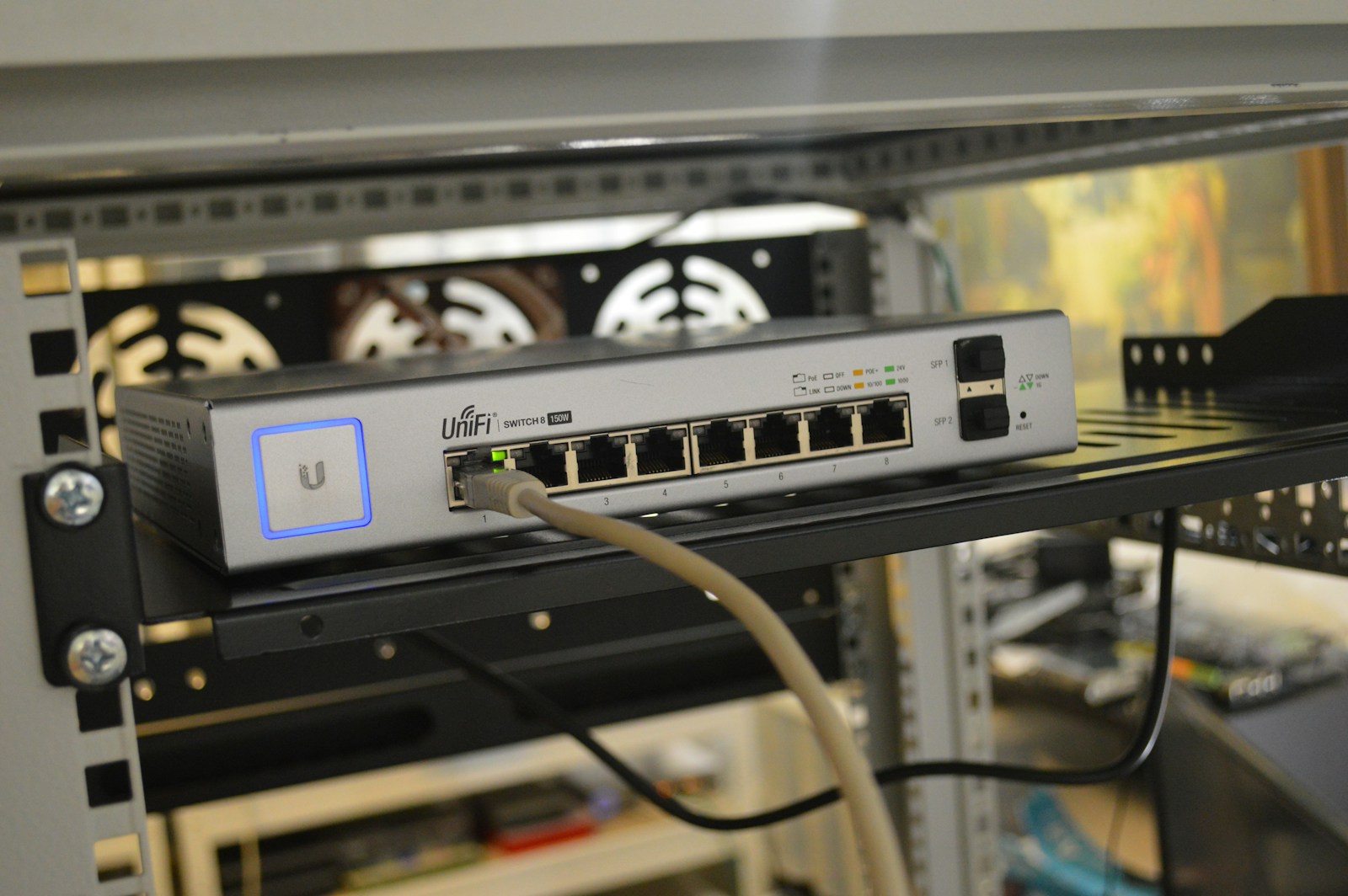
Connecting a new device to the internet may seem instant, but behind the scenes a complex series of processes takes place in seconds. From identifying your device to routing data across the globe, this guide explains what actually happens when a new device connects to the internet, step by step.
Step 1: Physical or Wireless Connection Is Established
First, the device creates a connection to a network:
- Wi‑Fi: The device connects to a wireless access point using a network name (SSID) and password.
- Ethernet: A physical cable links the device to a router or switch.
- Mobile data: The device connects to a cellular tower via a carrier network.
At this stage, the device is only connected locally—not yet to the wider internet.
Step 2: Network Authentication and Security Checks
Before access is granted, the network verifies the device:
- Confirms the Wi‑Fi password or encryption key
- Applies security protocols (WPA2/WPA3, SIM authentication for mobile)
- Checks access permissions (especially on enterprise or public networks)
If authentication fails, the device cannot proceed.
Step 3: IP Address Assignment (DHCP)
Once authenticated, the device needs a unique network address.
- The router assigns a local IP address (such as 192.168.1.25)
- This is handled automatically by DHCP (Dynamic Host Configuration Protocol)
- The device also receives:
- Subnet mask
- Default gateway
- DNS server addresses
This information allows the device to communicate beyond the local network.
Step 4: DNS Configuration and Name Resolution
Humans use website names; computers use IP addresses.
When you type a web address:
- The device contacts a DNS server
- The domain name (e.g.,
example.com) is translated into an IP address - The device now knows where to send its request
Without DNS, you’d have to remember numerical IP addresses.
Step 5: Establishing a Secure Connection (TLS/SSL)
Most modern internet traffic is encrypted.
- The device and website perform a TLS handshake
- Encryption keys are exchanged
- A secure tunnel is created
This protects data such as passwords, messages, and payment details from interception.
Step 6: Data Routing Across the Internet
Your request travels through multiple systems:
- Router → Internet Service Provider (ISP)
- ISP → regional and international networks
- Destination server
Each data packet is routed independently, often through different paths, then reassembled at its destination.
Step 7: Firewall and Traffic Inspection
Along the way, data may pass through:
- Router firewalls
- ISP security filters
- Device‑level firewalls
These systems help block malicious traffic, prevent unauthorized access, and manage bandwidth.
Step 8: Content Delivery and Response
The destination server:
- Processes the request
- Retrieves data (web page, image, video, etc.)
- Sends a response back through the same or similar network paths
Content may be delivered from a Content Delivery Network (CDN) server located closer to you for faster speeds.
Step 9: Local Caching and Optimization
To improve performance, devices and networks:
- Cache DNS lookups
- Store frequently accessed files
- Reuse secure connections
This makes future connections faster and more efficient.
What Makes the First Connection Slower?
A new device may feel slower at first due to:
- Initial updates and background syncing
- DNS and security handshakes
- App and system configuration processes
Once complete, performance stabilizes.
Security and Privacy Considerations
When a new device goes online:
- It becomes visible to the local network
- It may receive automatic updates
- Default settings may allow data sharing
Best Practices
- Update the device immediately
- Change default passwords
- Enable a firewall
- Use strong Wi‑Fi encryption
- Consider a VPN on public networks
Summary: The Internet Connection in Seconds
Although it feels instant, connecting a new device to the internet involves:
- Network connection
- Authentication
- IP address assignment
- DNS resolution
- Secure encryption
- Global data routing
- Content delivery
All of this typically happens in under a second.
Final Thoughts
Every time a new device connects to the internet, it participates in one of the most complex systems ever built. Understanding these steps helps you troubleshoot issues, improve security, and appreciate the technology that keeps us connected.
What Happens When a New Device is Connected to the Internet
Have you ever wondered what actually happens when you connect a new phone, laptop, or smart device to the internet? It’s something most of us do regularly without thinking about the technical process behind it. When a new device is connected to the internet, an Internet Protocol (IP) address is assigned to the device. This digital identifier is like a home address for your device, allowing data to find its way to and from your device across the vast network.
This IP address assignment is crucial because without it, your device would be invisible to the internet. The address may come from your router at home or from your cellular provider when using mobile data. Your device uses this address to communicate with websites, apps, and other online services.
Think of the internet as a massive postal system. Every piece of data needs both a sender and recipient address to reach its destination. When you browse websites, stream videos, or check email, your device is constantly sending and receiving data packets using its assigned IP address as the return address.
Key Takeaways
- Every device needs an IP address to communicate on the internet, serving as its unique identifier.
- The address assignment happens automatically through protocols like DHCP when you connect to a network.
- Understanding how devices connect to the internet helps improve troubleshooting and security practices.
Understanding Internet Connectivity
When a device connects to the internet, several technical processes happen behind the scenes to establish this connection. These processes include device recognition and the assignment of unique identifiers that allow the device to communicate with other systems worldwide.
Basics of Connecting a New Device to the Internet
Internet connectivity begins when a device—whether a smartphone, laptop, smart TV, or wearable—attempts to join a network. The device must first authenticate with the local network through Wi-Fi, Ethernet, or cellular data. This initial connection requires the device to provide the correct credentials, such as a Wi-Fi password.
Once authenticated, the device communicates with the router or modem. This equipment serves as the gateway between your local network and the broader internet.
Different devices connect in different ways. Computers typically offer multiple connection options, while mobile devices primarily use wireless technologies. Smart home products and wearables also have their own connectivity methods, often using Bluetooth to connect to a hub first.
IP Address Allocation and Network Recognition
The most critical step in internet connectivity is the assignment of an Internet Protocol (IP) address. This unique numerical label identifies your device on the network and allows data to find its way to and from your device.
When a new device connects to the internet, it receives an IP address through one of two methods:
- Dynamic Host Configuration Protocol (DHCP): Automatically assigns an available IP address
- Static IP assignment: Manually configured permanent address
The IP address works like a digital postal address. Without it, your device would be invisible to other systems on the internet.
Network recognition also involves Domain Name System (DNS) settings that translate human-readable website names into IP addresses. Your device stores these settings to efficiently navigate the web.
Securing Connected Devices
When a new device connects to the internet, it receives an IP address that enables communication. However, this connection also exposes the device to potential security threats that must be addressed proactively.
Identifying and Mitigating Security Risks
New internet-connected devices face numerous security challenges. The first step in protection is identifying potential vulnerabilities specific to each device type.
Smartphones, laptops, and IoT devices each have unique security profiles. For example, smartphones often contain sensitive personal data that requires stronger protection measures.
Regular security audits help identify weak points. These might include outdated software, weak passwords, or unnecessary permissions granted to applications.
Best practices include:
- Using strong, unique passwords for each device
- Enabling two-factor authentication when available
- Keeping operating systems and applications updated
- Limiting device permissions to only what’s necessary
Network segmentation also helps by isolating vulnerable devices from critical systems. This prevents security breaches from spreading across your entire network.
Malware Prevention and User Consent
Malware poses a significant threat to newly connected devices. These malicious programs can steal data, damage systems, or use your device for criminal activities.
Prevention starts with installing reputable security software. This provides real-time protection against known threats.
User consent plays a crucial role in security. Be cautious about which permissions you grant to applications and services. Read privacy policies carefully before accepting them.
Common malware entry points include:
- Suspicious email attachments
- Downloads from untrusted websites
- Infected USB drives
- Unpatched software vulnerabilities
Regular scanning helps detect threats that might have slipped through initial defenses. Set up automatic scans to run daily or weekly for best protection.
Troubleshooting Common Connection Issues
Even with proper security measures, connection problems may arise. Understanding basic troubleshooting steps saves time and frustration.
Start with the simplest solution: restart your device and router. This refreshes your connection and often resolves temporary issues.
Check physical connections if applicable. Loose cables or interference from other devices can disrupt connectivity.
If problems persist, verify your IP address assignment. Devices sometimes receive incorrect network settings that prevent proper internet access.
Common connection issues include:
- IP address conflicts
- DNS resolution failures
- Firewall blockages
- Router configuration problems
Contact your internet service provider if troubleshooting steps don’t work. They can check for outages or issues specific to your account or area.
Frequently Asked Questions
When a new device connects to the internet, it receives an Internet Protocol (IP) address. This address allows the device to send and receive data across the network. Understanding this process helps explain many common questions about internet connectivity.
How does the fault-tolerant nature of the internet enhance device connectivity?
The internet’s fault-tolerant design allows devices to maintain connections even when parts of the network fail. Data packets can take multiple paths to reach their destination.
If one route becomes unavailable, the system automatically redirects traffic through working connections. This redundancy ensures devices stay connected during network problems.
This design originated from military research seeking communication systems that could survive partial destruction during conflicts.
What are the ethical considerations when utilizing computer resources on the internet?
Responsible internet use includes respecting others’ privacy and intellectual property. Users should obtain permission before accessing or sharing protected content.
Security best practices involve using strong passwords and keeping software updated. These measures protect both personal data and the broader network.
Digital citizenship means understanding that online actions have real-world consequences. This includes avoiding harmful activities like spreading misinformation or participating in cyberbullying.
What are the main methods of data transmission between computers over the internet?
Packet switching breaks data into smaller units for efficient transmission. These packets may take different routes before reassembling at their destination.
TCP/IP protocols establish reliable connections between devices. TCP ensures complete data delivery while IP handles addressing and routing.
Wireless transmission uses radio waves for connectivity, while wired connections use physical cables. Each method offers different speeds, reliability, and security profiles.
What are the fundamental differences between the World Wide Web and the internet?
The internet is the physical network infrastructure connecting computers worldwide. It includes the hardware, cables, and protocols enabling digital communication.
The World Wide Web is just one service running on the internet. It consists of websites accessed through browsers using HTTP protocols.
Other internet services include email, file transfers, and instant messaging. These all operate independently from the web while using the same underlying network.
How does internet communication work, and what are its key features?
Internet communication follows a client-server model. Client devices request information from servers that store and deliver data.
Data travels in packets containing addressing information and content pieces. Routers examine these addresses to direct packets toward their destinations.
The system offers global connectivity, allowing devices anywhere to communicate. This happens regardless of geographic distance or different hardware types.
What are the indicators of a phishing attack, and how can they be identified?
Suspicious email addresses often mimic legitimate ones with slight spelling variations. Always check sender addresses carefully before responding or clicking links.
Urgent requests for personal information are common phishing tactics. Legitimate organizations rarely request sensitive data through email.
Poor grammar and generic greetings often indicate fraudulent messages. Professional organizations typically maintain high communication standards and personalize their messages.