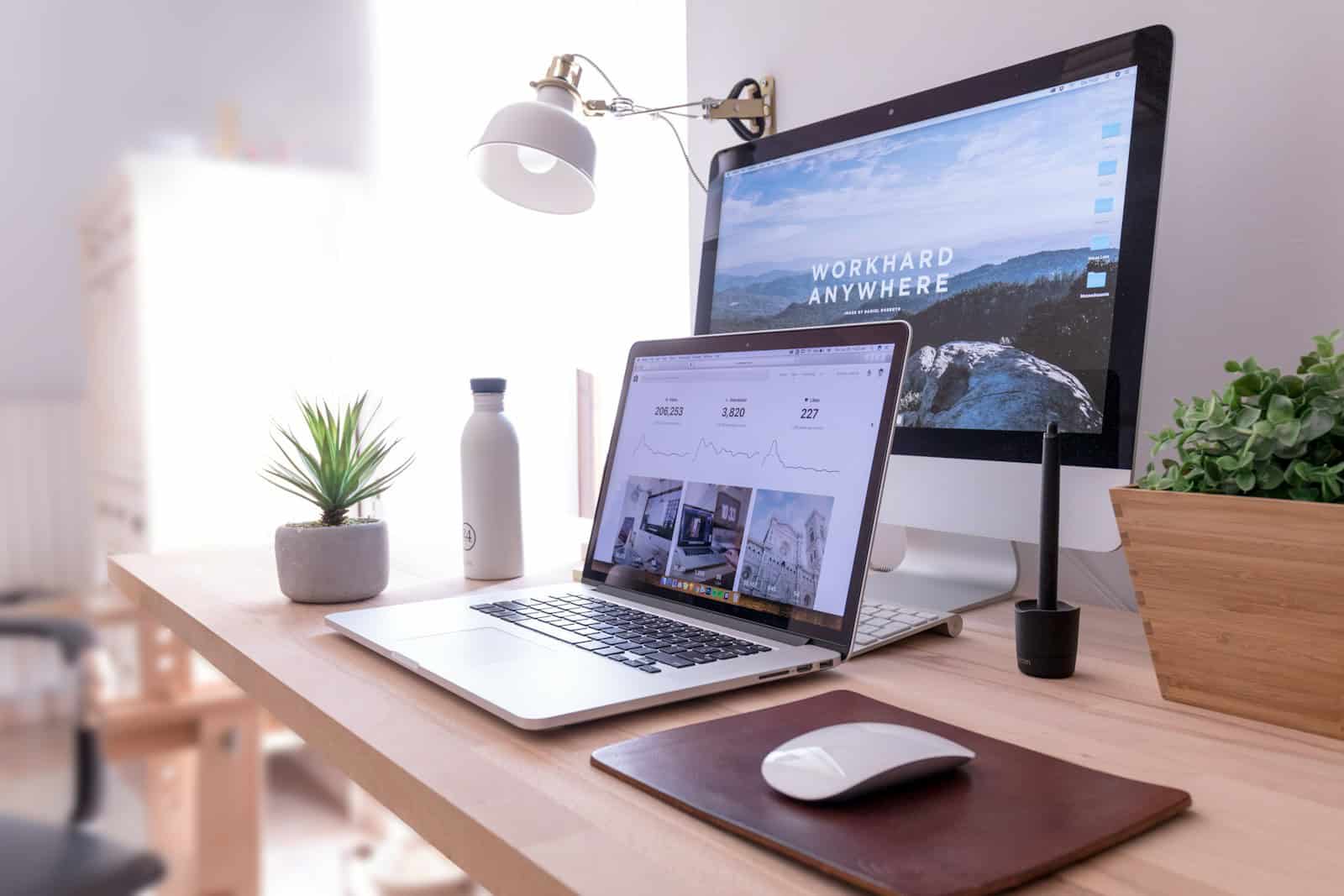
Setting up a laptop with external monitors can transform your work experience. Many people struggle with how to arrange their laptop and monitor setup for maximum comfort and productivity. Should the laptop sit on the desk, be elevated on a stand, or tucked away? These questions come up often when creating an efficient workspace.
The ideal laptop and monitor setup places all screens at eye level, with your laptop either elevated on a stand or serving as a secondary display. This arrangement reduces neck strain and allows for better multitasking. When using multiple monitors, they should be positioned at the same height and angle to create a seamless visual experience.
Proper placement isn’t just about looks—it affects your health and work quality too. A laptop stand provides better cooling for your device while improving your posture. Many productivity experts recommend positioning your main screen directly in front of you, with secondary displays at slight angles to reduce eye movement.
Laptop and Monitor Setup Tips
A well-designed laptop and monitor setup improves comfort, productivity, and long-term health. Whether you work from home, study, or game, these tips will help you create an ergonomic and efficient workspace.
1. Screen Positioning
Laptop Screen
- The top of the screen should be at or slightly below eye level
- Keep the screen about arm’s length (50–70 cm / 20–28 inches) from your eyes
- If using a laptop for long periods, consider a laptop stand to raise it
External Monitor
- Center the monitor directly in front of you
- If using multiple monitors:
- Place the primary monitor directly in front
- Angle secondary monitors slightly inward
- Align the tops of monitors at the same height if possible
2. Keyboard and Mouse Setup
- Keep your keyboard at elbow height
- Wrists should remain straight and relaxed
- Use an external keyboard and mouse when working on a laptop for long sessions
- Place the mouse close to the keyboard to avoid overreaching
3. Chair and Posture
- Sit with your back supported by the chair
- Feet should be flat on the floor (or on a footrest)
- Knees should be at or slightly below hip level
- Avoid leaning forward—bring the screen to you instead
4. Lighting and Glare Reduction
- Position monitors perpendicular to windows to reduce glare
- Use soft, indirect lighting rather than harsh overhead lights
- Adjust screen brightness to match room lighting
- Enable night mode or blue light filters in the evening
5. Desk Organization
- Keep frequently used items within easy reach
- Use cable management clips or sleeves to reduce clutter
- Leave space for arm movement and airflow around devices
6. Display Settings
- Set resolution to the monitor’s native resolution
- Increase text scaling if you strain to read
- Adjust contrast and sharpness for clarity
- Match refresh rate to your monitor’s capability
7. Laptop as a Second Screen
If using a laptop with an external monitor:
- Place the laptop to the side at the same height as the main monitor
- Use it for secondary tasks (email, chat, reference material)
- Avoid constantly turning your neck—reposition if needed
8. Breaks and Eye Care
- Follow the 20-20-20 rule:
- Every 20 minutes, look at something 20 feet away for 20 seconds
- Stand, stretch, or walk briefly every hour
- Blink often to reduce eye strain
9. Accessories That Help
- Laptop stand or monitor arm
- External keyboard and mouse
- Ergonomic chair
- Wrist rest (used lightly, not for constant pressure)
- Footrest if feet don’t reach the floor
10. Test and Adjust
Your ideal setup may change over time. Pay attention to:
- Neck or shoulder pain
- Wrist discomfort
- Eye fatigue
Small adjustments can make a big difference.
Final Tip
Comfort leads to consistency. A properly set up laptop and monitor environment helps you work longer, focus better, and protect your health.
Key Takeaways
- Position all screens at eye level to prevent neck strain and improve posture during long work sessions.
- Use a laptop stand to improve device cooling and create a more unified display height with external monitors.
- Arrange your primary monitor directly in front of you and secondary screens at slight angles for optimal viewing.
Essential Hardware for Laptop and Monitor Setup
Setting up a monitor with your laptop requires specific hardware components that work together seamlessly. Getting the right equipment ensures your dual-screen setup functions properly without compatibility issues.
Choosing the Right Monitor
When selecting a monitor for your laptop setup, consider both resolution and size. A 24-inch or 27-inch monitor with at least Full HD (1920×1080) resolution works well for most users. For creative professionals, a 4K monitor might be worth the investment.
Look for monitors with an adjustable stand that allows height and tilt adjustments. This helps maintain proper ergonomics during long work sessions.
Features like eye-care technology and anti-glare coatings can reduce eye strain. Many modern monitors also include built-in speakers, eliminating the need for additional audio equipment.
Consider the panel type as well. IPS panels offer better color accuracy and viewing angles compared to TN panels, making them ideal for design work.
The Importance of Ports
Ports are crucial connection points between your laptop and monitor. Most laptops come equipped with at least one of these common display ports:
- HDMI: The most common port, available on most laptops and monitors
- DisplayPort: Offers higher bandwidth than HDMI, good for high-resolution displays
- USB-C/Thunderbolt: Modern solution that can transfer video, data, and power
- VGA: Older analog connection found on some budget laptops and monitors
MacBook users typically have USB-C/Thunderbolt ports that support video output. Always check your laptop’s specifications to confirm available ports before purchasing a monitor.
Port bandwidth matters for high-resolution setups. For 4K displays running at 60Hz or higher, HDMI 2.0 or newer, DisplayPort 1.2+, or Thunderbolt connections are recommended.
Adapters and Docking Stations
When your laptop and monitor have different port types, adapters become essential. Common adapters include USB-C to HDMI, DisplayPort to HDMI, and USB-C to DisplayPort.
Quality matters with adapters. Cheap adapters may cause signal degradation or compatibility issues. Brands like Anker, Cable Matters, and Dell offer reliable options.
Docking stations provide an elegant solution for laptop users who frequently connect to external displays. A good docking station offers:
- Multiple display outputs (HDMI, DisplayPort)
- Additional USB ports for peripherals
- Ethernet connectivity
- Power delivery to charge your laptop
Docking stations are particularly useful for MacBook and ultrabook users with limited port options. They transform a single USB-C connection into a complete desktop setup with monitor support, peripheral connections, and charging capabilities.
Configuring Display Settings
Once your monitor is physically connected to your laptop, you need to configure the display settings for optimal use. Windows makes it easy to adjust how your screens work together with just a few clicks.
Adjusting Display Resolution
To adjust your display resolution, right-click on your desktop and select “Display settings” from the menu. In the Settings window, scroll down to find the “Display resolution” dropdown menu. Select the resolution that works best for your monitor—typically, the recommended option provides the clearest image.
Different monitors support different maximum resolutions. For example:
- Full HD: 1920 x 1080
- 2K: 2560 x 1440
- 4K: 3840 x 2160
If text appears too small after changing resolution, you can adjust the scaling percentage in the same settings window. This changes the size of text and apps without affecting the overall resolution quality.
Extending vs. Mirroring Display
Windows offers two primary ways to use multiple monitors: extend or mirror your displays.
To choose between these options, press Win+P or access the display settings and look for “Multiple displays” options.
Extend mode spreads your desktop across all screens, giving you more workspace. This is ideal for:
- Viewing multiple applications simultaneously
- Dragging windows between displays
- Maximizing productivity with different tasks on each screen
Mirror mode shows the same content on all displays. This works well for:
- Presentations where viewers need to see what’s on your laptop screen
- Watching videos on a larger screen
- Temporary setups where you need quick duplication
Display Settings for Productivity
Arranging displays properly can significantly boost your workflow efficiency. In Display Settings, you’ll see numbered boxes representing your screens. Drag these boxes to match the physical arrangement of your monitors.
Set your primary display by selecting a screen and checking “Make this my main display.” The primary display shows your taskbar and Start menu by default.
For better multitasking, consider these adjustments:
- Position your most-used applications on your primary display
- Use “Snap” features (Win+arrow keys) to quickly organize windows
- Enable Night Light for evening work to reduce eye strain
You can also customize each display’s scaling settings independently if your monitors have different sizes or resolutions.
Optimizing Your Setup for Specific Needs
Different users have unique requirements for their laptop and monitor setup. The right configuration can significantly improve both gaming performance and workplace productivity.
Enhancing the Gaming Experience
Gamers need setups that deliver smooth gameplay and immersive visuals. A dual or triple monitor arrangement can transform gaming by expanding the field of view in compatible games.
Monitor positioning is crucial. Place your primary gaming monitor directly in front at eye level, with secondary displays angled slightly inward. This creates a more natural viewing experience without neck strain.
For optimal performance, consider these factors:
- Refresh rate: Gaming monitors with 144Hz or higher provide smoother motion
- Response time: Look for 1ms response time to reduce motion blur
- Connectivity: Use DisplayPort for higher refresh rates when possible
Cable management becomes more important with multiple monitors. Use cable clips or sleeves to keep wires organized and prevent tangling.
Setup for Productivity and Working from Home
A well-designed home office setup boosts efficiency and reduces physical strain during long workdays.
Task distribution is key with multiple screens. Use your laptop screen for communication tools and your external monitor for main work. This separation helps maintain focus and workflow.
Ergonomics matter. Position monitors at eye level, about an arm’s length away. Your main screen should be directly in front, with secondary displays at comfortable viewing angles.
Consider these productivity enhancements:
- Adjustable monitor stands for perfect height alignment
- Monitor light bars to reduce eye strain
- Docking station for single-cable connectivity
For video calls, position your camera at eye level. This might require a laptop stand if using your built-in webcam, creating a more professional appearance during meetings.
Ergonomics and Accessories
Setting up your workspace with proper ergonomics and accessories can make a huge difference in comfort and productivity. The right tools help prevent strain and create a more efficient work environment.
Desk Accessories
An adjustable monitor stand is essential for proper screen positioning. It should place your screen at eye level to prevent neck strain. Many stands offer additional storage underneath for a cleaner workspace.
Cable management solutions keep your desk tidy and prevent accidents. Options include cable clips, sleeves, or under-desk trays that hide cords from view.
A desk mat provides comfort for your wrists while protecting your desk surface. Choose one made of durable materials like felt or leather.
Consider adding a document holder if you frequently reference papers while typing. This keeps documents at eye level and reduces neck movement.
Task lighting is important to reduce eye strain and create proper illumination for your workspace, especially during evening hours.
Choosing the Right Peripherals
An ergonomic keyboard helps maintain natural wrist positioning. Mechanical keyboards offer better feedback and durability than membrane models. Consider split designs that allow for a more natural arm position.
When selecting a mouse, look for ergonomic shapes that fit your hand size. Vertical mice position your hand in a “handshake” position, reducing wrist strain. Trackballs provide an alternative that requires less arm movement.
Quality speakers or headphones are important for clear audio without straining to hear. For video calls, a dedicated webcam and microphone provide better clarity than built-in laptop options.
Wireless peripherals reduce desk clutter but require regular charging. Consider your workflow when deciding between wired and wireless options.
Addressing Comfort and Eye Strain
The 20-20-20 rule helps reduce eye strain: every 20 minutes, look at something 20 feet away for 20 seconds. This gives your eyes a break from screen focus.
Blue light filtering glasses may help reduce eye fatigue from screen exposure. Many monitors also include built-in blue light filters that can be activated.
Proper lighting is crucial. Position your desk to avoid glare on screens, and use adjustable lighting that can be brightened or dimmed as needed.
Take regular movement breaks. Even the best ergonomic setup can’t prevent strain from sitting too long. Set reminders to stand and stretch every hour.
Consider a footrest if your feet don’t rest flat on the floor when seated. This improves circulation and reduces pressure on your lower back.
Frequently Asked Questions
Setting up a laptop with monitors involves several key considerations including connectivity, ergonomics, and workspace arrangement. These questions address common concerns people have when creating their ideal workspace.
What are the optimal ergonomics for a laptop and monitor setup on a small desk?
For optimal ergonomics on a small desk, position your monitor at eye level, about an arm’s length away. The top of the screen should be at or slightly below eye level to prevent neck strain.
Use a laptop stand or riser to elevate your laptop screen when using it as a second display. This prevents hunching over and promotes better posture.
Consider a compact keyboard and mouse to save desk space while maintaining proper arm positioning. Your elbows should rest at 90-degree angles when typing to reduce wrist strain.
What are some efficient desk arrangement ideas for a home office utilizing a laptop and multiple monitors?
An L-shaped desk configuration maximizes corner space and provides separate areas for different tasks. This arrangement works well for placing monitors along the back edges while keeping the laptop accessible.
Wall-mounted monitor arms free up valuable desk space and allow for flexible positioning. They can swing in when needed and push back when more desk space is required.
Vertical stacking of monitors (one above another) can work well in tight spaces. This setup maintains a narrower footprint than side-by-side arrangements.
How can I set up my laptop with two external monitors for a dual-screen workstation?
Check your laptop’s video output ports (HDMI, DisplayPort, USB-C) to determine connection options. Many modern laptops support dual external monitors through native ports.
If your laptop lacks sufficient ports, consider a docking station or USB hub with video outputs. These expand connection options and simplify cable management.
Configure display settings in your operating system to arrange monitors logically. You can set them to extend your desktop or mirror displays depending on your workflow needs.
What stands or docking stations are recommended for a combined laptop and monitor setup?
Adjustable laptop stands like the Rain Design mStand or Roost Laptop Stand provide good ergonomics. They elevate your laptop screen while allowing space underneath for keyboard storage.
Universal docking stations from brands like Caldigit, Dell, and Kensington offer reliable performance. Look for models with power delivery to charge your laptop through a single cable connection.
Vertical laptop stands save space when using the laptop in clamshell mode. These keep your laptop safely stored while connected to external monitors.
How do I properly connect and configure multiple monitors with my laptop?
Connect monitors using the appropriate cables based on your laptop’s ports. Adapters may be needed if port types don’t match between devices.
Once physically connected, configure display settings through your operating system. On Windows, right-click the desktop and select “Display settings.” On Mac, use “System Preferences” under “Displays.”
Arrange the monitors in settings to match their physical layout on your desk. This ensures natural cursor movement between screens and proper window positioning.
What are the key considerations when setting up a laptop and monitor to avoid neck and eye strain?
Position your primary screen directly in front of you to avoid twisting your neck. Secondary monitors should be placed at equal distances whenever possible.
Adjust brightness and color temperature settings to reduce eye strain. Consider using night mode or blue light filters, especially during evening work sessions.
Take regular breaks using the 20-20-20 rule: every 20 minutes, look at something 20 feet away for 20 seconds. This helps prevent eye fatigue from extended screen time.