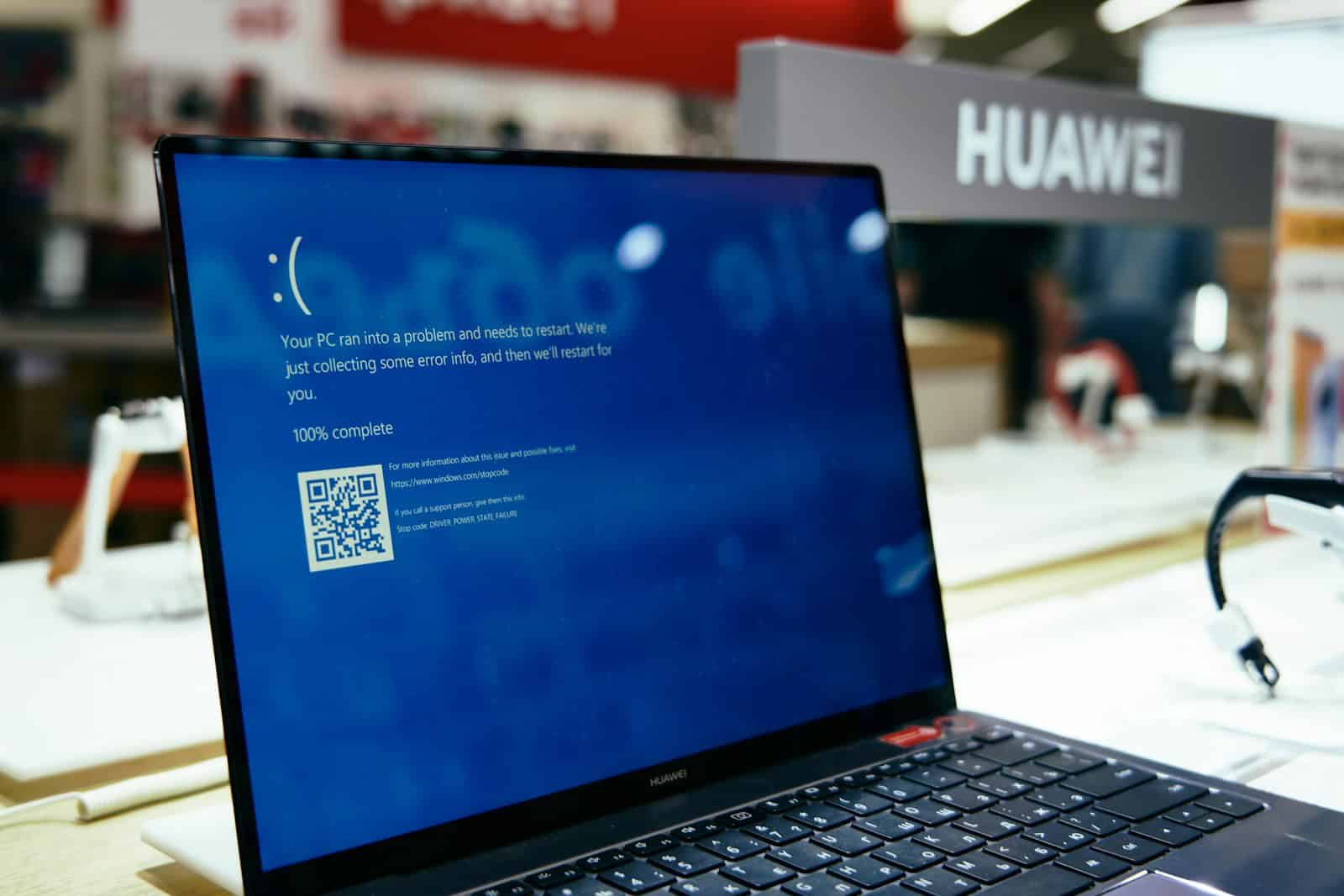
Have you ever experienced your Windows computer suddenly showing a blue screen with the message “KMODE EXCEPTION NOT HANDLED”? This frustrating error often appears without warning and forces your computer to restart, potentially causing you to lose unsaved work.
The KMODE EXCEPTION NOT HANDLED blue screen error typically occurs when there’s a problem with device drivers on your Windows system. These drivers might be outdated, corrupted, or incompatible with your current Windows version. The error can happen during installation, at boot-up, or even while you’re using your computer.
The good news is that this error can usually be fixed without professional help. Common solutions include updating your drivers, checking your RAM, disabling fast startup, or running Windows Memory Diagnostics. With the right approach, you can solve this problem and prevent it from happening again in the future.
KMODE_EXCEPTION_NOT_HANDLED in Windows: Complete Guide
The KMODE_EXCEPTION_NOT_HANDLED error is a common Windows Blue Screen of Death (BSOD). It usually appears suddenly, forces a system restart, and may loop if the root cause isn’t fixed. This guide explains what the error means, why it happens, and how to fix it safely.
What Is KMODE_EXCEPTION_NOT_HANDLED?
KMODE_EXCEPTION_NOT_HANDLED is a kernel-mode error. It occurs when a Windows kernel process (core system code) throws an exception that the system doesn’t know how to handle.
In simple terms:
A critical system driver or hardware component did something Windows wasn’t prepared for.
This error often shows up during:
- Boot
- Gaming or heavy workloads
- After installing drivers or Windows updates
Common Causes
The most frequent causes include:
1. Faulty or Incompatible Drivers
- Graphics drivers (NVIDIA, AMD, Intel)
- Network or Wi-Fi drivers
- Audio drivers
- Third-party antivirus drivers
2. Corrupt System Files
- Interrupted Windows updates
- Malware or disk errors
- Improper shutdowns
3. Hardware Issues
- Defective RAM
- Overclocked CPU or GPU
- Failing storage drives
4. BIOS or Firmware Problems
- Outdated BIOS
- Incorrect BIOS settings
How to Fix KMODE_EXCEPTION_NOT_HANDLED
Follow these steps in order, starting with the easiest.
Step 1: Boot Into Safe Mode
Safe Mode loads Windows with minimal drivers.
How to enter Safe Mode:
- Restart your PC
- Interrupt boot 2–3 times (power off during loading)
- Go to Advanced options → Troubleshoot → Startup Settings
- Press F4 (Safe Mode) or F5 (Safe Mode with Networking)
If the error does not appear in Safe Mode, the issue is almost certainly a driver.
Step 2: Update or Roll Back Drivers
Update Drivers
- Open Device Manager
- Right‑click suspicious devices (especially display, network)
- Choose Update driver
Roll Back Drivers (If Issue Started Recently)
- Device Manager → Driver properties
- Go to Driver tab
- Click Roll Back Driver
⚠️ If you recently updated GPU drivers, this is a prime suspect.
Step 3: Remove Problematic Software
Uninstall:
- Third‑party antivirus or firewall software
- System tuning or overclocking tools
- Old VPN or network utilities
Use:
- Settings → Apps → Installed Apps
- Restart after uninstalling
Step 4: Run System File Checker (SFC)
Corrupt system files can trigger this error.
- Open Command Prompt (Admin)
- Run:
sfc /scannow - Wait for completion and restart
If errors persist, run:
DISM /Online /Cleanup-Image /RestoreHealth
Step 5: Check RAM for Errors
Faulty RAM is a common hidden cause.
Windows Memory Diagnostic
- Press Win + R
- Type
mdsched.exe - Restart and scan
If errors are found:
- Reseat RAM sticks
- Test one stick at a time
- Replace faulty RAM
Step 6: Disable Overclocking
If you overclocked:
- CPU
- GPU
- RAM (XMP profiles)
Reset BIOS to default settings
- Enter BIOS (DEL / F2 during boot)
- Choose Load Optimized Defaults
Step 7: Update BIOS and Windows
Update Windows
- Settings → Windows Update
- Install all available updates
Update BIOS (Advanced Users)
- Visit your motherboard or laptop manufacturer’s site
- Install only the correct BIOS version
⚠️ Incorrect BIOS updates can brick your system. Proceed carefully.
Step 8: Identify the Faulty Driver (Advanced)
If the BSOD shows a file like:
xxx.sys
Search the filename online to identify the driver.
You can also use:
- Event Viewer
- BlueScreenView
- WhoCrashed
These tools help pinpoint which driver caused the crash.
When Nothing Works
If the issue persists:
- Perform a System Restore
- Reset Windows (Keep my files option)
- Reinstall Windows as a last resort
Summary
KMODE_EXCEPTION_NOT_HANDLED usually means:
- A bad driver
- Corrupt system files
- Hardware instability
✅ Most cases are fixed by updating or removing drivers
✅ Hardware checks solve stubborn cases
✅ Clean Windows installs are rarely needed
Key Takeaways
- The KMODE EXCEPTION NOT HANDLED error is typically caused by faulty device drivers, problematic RAM, or system incompatibilities.
- Updating drivers, running memory diagnostics, and disabling fast startup are effective troubleshooting steps for fixing this BSOD error.
- Regular system maintenance and keeping drivers updated can help prevent this error from occurring in the future.
Understanding the ‘Kmode Exception Not Handled’ Error
The ‘Kmode Exception Not Handled’ is a critical Windows error that appears as a Blue Screen of Death (BSOD). This error occurs when Windows detects a problem that prevents it from safely operating in kernel mode.
Causes of KMODE_EXCEPTION_NOT_HANDLED
The most common cause of this error is faulty drivers. When a driver attempts to access memory it shouldn’t, Windows crashes to protect the system. Outdated, corrupt, or incompatible drivers often trigger this problem.
Hardware issues can also cause this BSOD. Faulty RAM is a frequent culprit, as memory problems can lead to incorrect data being passed to the kernel. Other hardware components like graphics cards or storage devices may contribute to the error when they malfunction.
Recent software changes sometimes trigger this error. A Windows update, new application, or system modification might conflict with existing drivers.
Interpreting the Blue Screen Error Message
The blue screen display contains valuable troubleshooting information. The error code “KMODE_EXCEPTION_NOT_HANDLED” appears prominently, often accompanied by a specific file name.
This file name is crucial – it frequently identifies the problematic driver. For example, seeing “ntfs.sys” might point to storage drivers, while “nvlddmkm.sys” indicates NVIDIA graphics issues.
The BSOD also displays a STOP code (like 0x0000001E). This code helps technicians identify the specific type of kernel exception that occurred.
Some screens show additional hexadecimal values called parameter codes. These technical details assist advanced troubleshooting and can help identify exactly where in memory the exception occurred.
Troubleshooting the Error
When facing a KMODE_EXCEPTION_NOT_HANDLED error in Windows 10, it’s important to follow a systematic approach to identify and fix the underlying cause, which is typically related to driver issues or hardware conflicts.
Entering Safe Mode
Safe Mode is an essential troubleshooting environment that loads only basic drivers and services. To enter Safe Mode, restart your computer and press F8 repeatedly before Windows starts loading. On newer systems, you may need to hold Shift while clicking Restart, then navigate to Troubleshoot > Advanced options > Startup Settings.
Once in Safe Mode, check if the BSOD still occurs. If your computer runs without crashing, this confirms that a third-party driver or service is likely causing the issue.
You can use Safe Mode to uninstall recently added software or hardware drivers that might be causing conflicts. Access Control Panel > Programs and Features to remove suspicious programs.
If you’re stuck in a boot loop, use Windows Recovery Environment to access Safe Mode instead.
Using Windows Diagnostic Tools
Windows offers several built-in diagnostic tools to help identify system issues. The System File Checker (SFC) scans for and repairs corrupted system files. Open Command Prompt as administrator and run sfc /scannow to begin the scan.
Windows Memory Diagnostic tool can help identify RAM problems that might trigger the KMODE exception. Access it through Control Panel or by typing “memory diagnostic” in the search bar.
For more thorough memory testing, consider using Memtest86, which requires creating bootable media but provides comprehensive testing.
Driver Verifier is another powerful tool that monitors drivers for violations. Be cautious when using it as it can cause intentional BSODs to identify problematic drivers.
These diagnostics can take time to complete, but they help pinpoint the exact cause of the error.
Updating or Reverting Drivers
Since KMODE exceptions are commonly caused by driver problems, managing drivers is crucial. Open Device Manager by right-clicking the Start button and selecting it from the menu.
Look for devices with yellow warning symbols, which indicate driver problems. Right-click these devices and select Update driver. Windows can search automatically for updated driver software.
If you recently updated a driver before experiencing the error, try rolling back to the previous version. Right-click the device, select Properties, go to the Driver tab, and click Roll Back Driver.
For graphics cards and network adapters, consider downloading the latest drivers directly from the manufacturer’s website instead of using Windows Update.
If you can’t identify the problematic driver, focus on common culprits like display, network, and storage drivers.
Preventing Future ‘Kmode Exception Not Handled’ Errors
Taking preventive measures can significantly reduce the chances of encountering the dreaded Kmode Exception error. These steps focus on proper system configuration and regular maintenance to keep drivers and system files healthy.
Configuring System Settings
One of the most effective ways to prevent Kmode Exception errors is to disable Fast Startup. This feature, while making Windows boot faster, can sometimes cause driver conflicts. To turn it off, go to Control Panel > System and Security > Power Options > Choose what the power buttons do. Then uncheck “Turn on fast startup.”
BIOS settings also play a crucial role in system stability. Make sure your BIOS is updated to the latest version from the manufacturer’s website. Outdated BIOS firmware can cause compatibility issues with newer hardware and Windows 10.
Creating regular system restore points gives you a safety net. Go to the Start menu, search for “Create a restore point,” and follow the prompts to set one up. This allows you to roll back your system if a driver update causes problems.
Regular System Maintenance
Keeping drivers updated is essential for preventing Kmode exceptions. Use Windows Update or manufacturer websites to ensure all drivers are current, especially graphics, network, and storage drivers which commonly cause these errors.
Run the Windows Memory Diagnostic tool periodically to check for RAM issues. Memory problems often trigger Kmode exceptions. Access this tool by searching “Windows Memory Diagnostic” in the Start menu.
Schedule regular disk cleanup and defragmentation to maintain system performance. A cluttered or fragmented drive can lead to file corruption that triggers BSODs. The built-in Disk Cleanup and Defragmentation tools can be found in the System and Security section of Control Panel.
Avoid installing questionable software that might contain poorly written drivers. Stick to trusted sources for all programs and driver updates to minimize the risk of compatibility issues.
Frequently Asked Questions
The KMODE_EXCEPTION_NOT_HANDLED error typically appears as a blue screen of death (BSOD) in Windows 10. This error occurs when the system encounters a problem it can’t recover from, often related to driver conflicts, hardware issues, or system file corruption.
How can the KMODE_EXCEPTION_NOT_HANDLED error be fixed in Windows 10?
The KMODE_EXCEPTION_NOT_HANDLED error is most commonly caused by driver problems. Users should first try to boot into Safe Mode and uninstall recently added software or drivers.
Updating device drivers is often an effective solution. This can be done through Device Manager by right-clicking on devices and selecting “Update driver.”
System File Checker (SFC) scans can help repair corrupted system files. Users can run “sfc /scannow” in Command Prompt with administrator privileges to check for and fix system file issues.
What steps should be taken when a black screen appears along with the KMODE_EXCEPTION_NOT_HANDLED error?
When encountering a black screen with this error, users should first attempt to restart the computer. Sometimes the issue resolves itself after a simple reboot.
If the black screen persists, booting into Safe Mode might help. This can be done by pressing F8 during startup or through Recovery options.
Disconnecting unnecessary peripherals can also help identify if external hardware is causing the issue. Users should try removing all external devices except keyboard and mouse.
Can faulty RAM be a reason for the KMODE_EXCEPTION_NOT_HANDLED error on Windows 10?
Yes, faulty RAM can definitely cause KMODE_EXCEPTION_NOT_HANDLED errors. Memory problems often lead to system instability and blue screens.
Users can run Windows Memory Diagnostic tool to check for RAM issues. This built-in tool can be accessed through Control Panel or by typing “mdsched.exe” in the Run dialog.
For more thorough testing, Memtest86+ can be used to check for RAM errors. This tool runs outside Windows and provides comprehensive memory testing.
What are the common causes of a Blue Screen of Death (BSOD) in Windows 10?
Driver conflicts are a leading cause of BSODs in Windows 10. Outdated, corrupt, or incompatible drivers can trigger system crashes.
Hardware failures, particularly with RAM, hard drives, or overheating components, frequently cause blue screens. Regular hardware maintenance can prevent these issues.
Software conflicts between recently installed programs and existing system components may lead to BSODs. Uninstalling recently added software can help identify the culprit.
How does one troubleshoot the KMODE_EXCEPTION_NOT_HANDLED error post Windows 10 updates?
After a Windows update, rolling back to the previous version may resolve the issue. This can be done through Settings > Update & Security > Recovery.
Checking for additional pending updates is important. Sometimes Microsoft releases patches for issues caused by previous updates.
The Windows Update Troubleshooter can identify and fix problems with recent updates. Running this tool might resolve update-related KMODE exceptions automatically.
What are the recommended methods for resolving KMODE_EXCEPTION_NOT_HANDLED during Windows 10 installation?
Checking hardware compatibility before installation can prevent this error. Users should verify that their system meets Windows 10 requirements.
Disconnecting unnecessary peripherals during installation often helps. Only essential components like keyboard, mouse, and monitor should remain connected.
Using the Media Creation Tool to create fresh installation media can resolve corrupted installer issues. This ensures a clean copy of Windows 10 is being installed.