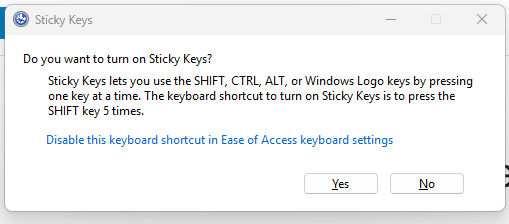
Sticky Keys is a Windows accessibility feature designed to help users who have difficulty holding down multiple keys at once. While helpful for some, it can be annoying or disruptive, especially when gaming, typing quickly, or using keyboard shortcuts—often activating unexpectedly after pressing Shift five times.
This guide walks you through all the ways to turn off Sticky Keys in Windows 11, including how to stop it from turning on again by disabling the Sticky Keys shortcut (ie- making it so hitting SHIFT 5 times doesn’t pop up the sticky keys prompt).
What Are Sticky Keys?
Sticky Keys allows modifier keys like Shift, Ctrl, Alt, and Windows key to remain active after being pressed once. Instead of holding down keys simultaneously, you can press them one at a time.
Example:
Pressing Ctrl, then C will copy text without holding Ctrl.
Method 1: Turn Off Sticky Keys via Windows Settings (Recommended)
Step‑by‑Step Instructions
- Press Windows + I to open Settings
- Click Accessibility in the left sidebar
- Select Keyboard
- Toggle Sticky Keys to Off
✅ Sticky Keys is now disabled.
Method 2: Disable Sticky Keys Shortcut (Prevent Pop‑Ups)
Even if Sticky Keys is off, Windows may still prompt you when pressing Shift five times.
Steps to Disable the Shortcut
- Go to Settings → Accessibility → Keyboard
- Click Sticky Keys
- Turn Off:
- Keyboard shortcut for Sticky Keys
- Show the Sticky Keys icon on the taskbar
- Play a sound when modifier keys are pressed
This prevents Sticky Keys from re‑enabling itself accidentally.
Method 3: Turn Off Sticky Keys from the Lock Screen
If Sticky Keys activates before you log in:
- Click the Accessibility icon on the Windows login screen
- Select Sticky Keys
- Toggle it Off
Method 4: Disable Sticky Keys Using Control Panel
Some users prefer the classic interface.
- Press Windows + R
- Type
controland press Enter - Go to Ease of Access → Ease of Access Center
- Click Make the keyboard easier to use
- Uncheck Turn on Sticky Keys
- Click Apply → OK
Method 5: Turn Off Sticky Keys Using the Registry (Advanced Users)
⚠️ Only use this method if others don’t work.
- Press Windows + R
- Type
regedit→ Press Enter - Navigate to:
HKEY_CURRENT_USER\Control Panel\Accessibility\StickyKeys - Double‑click Flags
- Change the value to:
506 - Click OK and restart your PC
How to Know Sticky Keys Is Turned Off
✔ Pressing Shift five times does nothing
✔ Modifier keys don’t stay active
✔ No Sticky Keys icon appears in the system tray
Common Problems & Fixes
Sticky Keys Keeps Turning On
- Make sure Keyboard shortcut is disabled
- Check for third‑party keyboard software
- Restart Windows after changes
Sticky Keys Turns On During Gaming
- Disable it before launching games
- Run games in exclusive fullscreen
- Disable Filter Keys as well (Accessibility → Keyboard)
Should You Keep Sticky Keys Enabled?
Sticky Keys is useful if you:
- Have limited hand mobility
- Use keyboard shortcuts frequently without holding keys
If not, turning it off improves gaming, typing speed, and workflow.
Quick Summary
✅ Settings → Accessibility → Keyboard → Sticky Keys → Off
✅ Disable the Shift 5‑times shortcut
✅ Restart if necessary