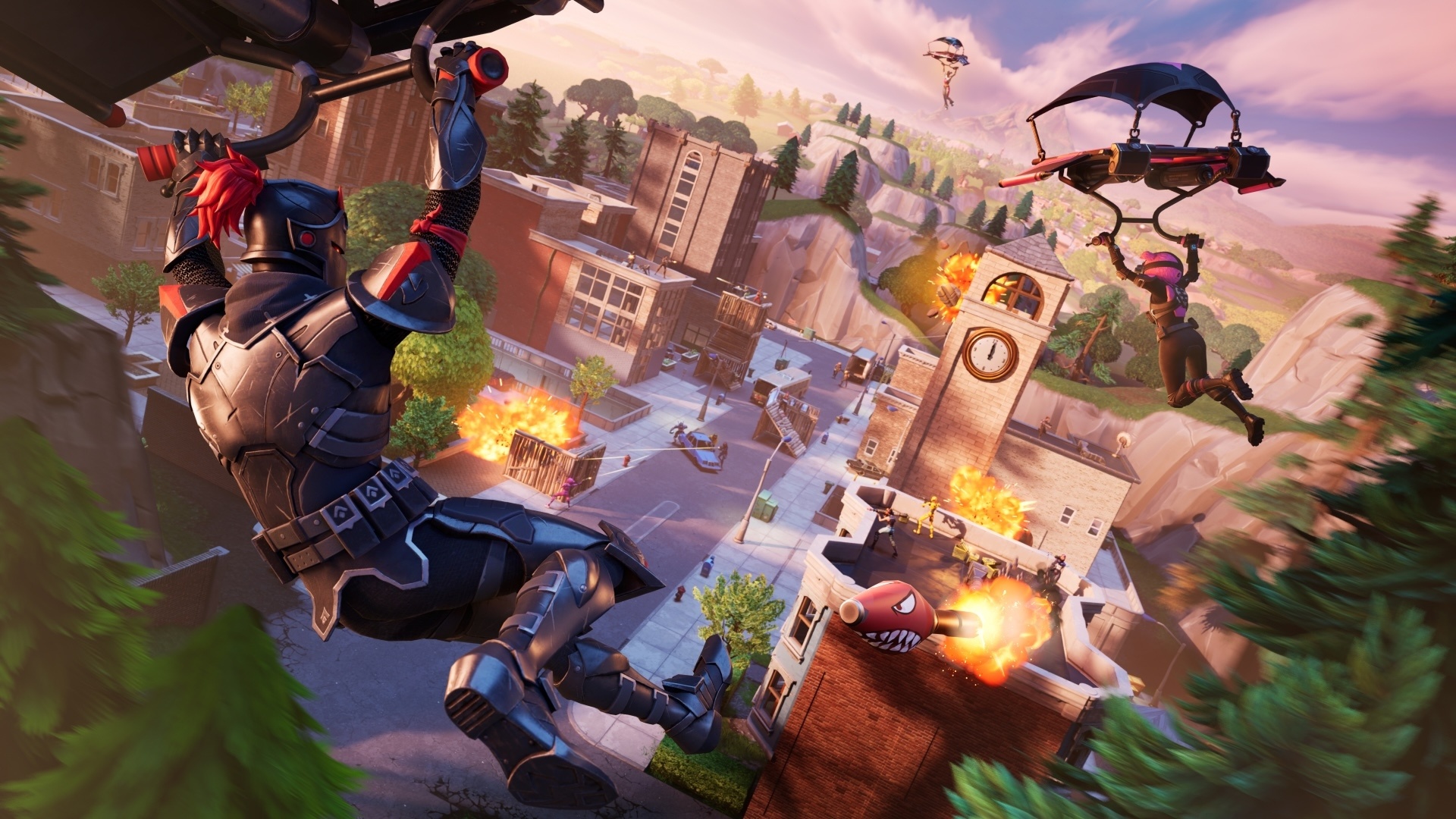
Fortnite players often face frustrating moments when the game suddenly stops working. As of 2026, several players have reported issues following the recent update. The main problems currently affecting Fortnite include crashes when using the default ChugJug in Creative mode and connection issues with Epic Online Services (EOS) Voice.
Epic Games is actively investigating these problems, as confirmed by their official Fortnite Status account. Some players have found temporary workarounds, such as running the Epic Games launcher as administrator before launching Fortnite. This solution might help while waiting for an official fix from the development team.
If you’re experiencing issues, it’s worth checking Downdetector to see if others are reporting problems too. While there appear to be no widespread outages at the moment, isolated technical issues are affecting specific features within the game, particularly in Creative mode and with voice communications.
Why Is Fortnite Not Working?
Troubleshooting Steps To Try
If Fortnite isn’t working—won’t launch, crashes, gets stuck on the loading screen, or won’t connect to servers—you’re not alone. Issues can stem from server outages, updates, device problems, or network issues. This guide walks you through step‑by‑step fixes for all major platforms.
Step 1: Check Fortnite Server Status
Before changing anything, confirm the problem isn’t on Epic Games’ side.
- Visit status.epicgames.com
- Check Fortnite and Epic Online Services
- Look for maintenance or outages
✅ If servers are down, you’ll need to wait—no local fix will help.
Step 2: Restart Everything
This simple step fixes many temporary issues.
- Restart your device
- Restart your router/modem
- Close and reopen Fortnite
Common Fortnite Problems and How to Fix Them
Fortnite Won’t Launch
Possible Causes:
- Corrupted files
- Outdated launcher
- System compatibility issues
Fixes:
- Update the Epic Games Launcher
- Verify game files:
- Epic Games Launcher → Library → Fortnite → ⋯ → Verify
- Run the launcher as administrator (Windows)
Fortnite Keeps Crashing
Possible Causes:
- Outdated graphics drivers
- Overheating
- Conflicting background apps
Fixes:
- Update GPU drivers (NVIDIA/AMD)
- Lower in‑game graphics settings
- Close overlays (Discord, GeForce Experience)
- Check device temperature
Stuck on “Connecting” or “Loading Screen”
Fixes:
- Log out and back into Epic Games Launcher
- Disable VPN or proxy
- Switch to a wired internet connection
- Change DNS to 8.8.8.8 / 8.8.4.4
Login or Account Errors
Fixes:
- Reset your Epic Games password
- Check account status for bans or restrictions
- Make sure your console account is properly linked
Platform‑Specific Fixes
PC (Windows / macOS)
- Ensure system meets minimum requirements
- Disable background recording software
- Reinstall Fortnite if needed
PlayStation
- Check PlayStation Network status
- Update system software
- Rebuild database (Safe Mode)
Xbox
- Check Xbox Live service status
- Clear cache (power cycle console)
- Ensure Fortnite is fully updated
Nintendo Switch
- Restart the console
- Check available storage space
- Re‑download the game if needed
Android
- Update the Epic Games App
- Allow required permissions
- Ensure compatible device and OS
Internet & Network Fixes
| Issue | Fix |
|---|---|
| High ping | Use Ethernet |
| Packet loss | Restart router |
| NAT errors | Enable UPnP |
| Frequent disconnects | Disable VPN |
Check for Updates
Fortnite requires all updates to be installed.
- Update Fortnite
- Update Epic Games Launcher
- Update your operating system
- Update console firmware
Advanced Fixes to Try
Clear Epic Games Launcher Cache (PC)
- Close the launcher
- Press Win + R, type
%localappdata% - Delete the EpicGamesLauncher folder
- Restart the launcher
Reinstall Fortnite
Use this as a last resort:
- Uninstall Fortnite
- Restart your device
- Reinstall the latest version
Common Error Messages Explained
| Error | Meaning |
|---|---|
| “Servers not responding” | Server outage |
| “Failed to login” | Account or network issue |
| “Application crash detected” | System or driver problem |
| “Unable to connect” | Firewall or ISP issue |
When to Contact Epic Games Support
Reach out if:
- The issue persists after reinstalling
- You suspect an account ban
- You see repeated error codes
👉 Epic Games Support: https://www.epicgames.com/help
Final Thoughts
Most Fortnite issues are caused by updates, server downtime, or system conflicts—and many can be fixed quickly by restarting, updating, or verifying files. Start with the basics, then move to advanced steps only if needed.
Key Takeaways
- Current Fortnite issues include crashes with the default ChugJug in Creative mode and EOS Voice connection problems.
- Running the Epic Games launcher as administrator might temporarily solve some crashing problems.
- Regular troubleshooting steps include checking for game updates, clearing cache, and monitoring Epic’s status page for announcements.
Investigating Fortnite Accessibility Issues
Some players have faced significant barriers when trying to access Fortnite. These issues range from technical glitches to platform-specific problems that prevent normal gameplay.
Identifying Common Error Messages
When Fortnite isn’t working properly, the game typically displays specific error messages that can help identify the problem. “Cannot connect to servers” usually indicates network or server issues. This is different from “Application crash detected” which points to problems with the game installation.
“Failed to initialize BattlEye Service” suggests an issue with the anti-cheat software. Players might also see “Login failed” errors when authentication servers are experiencing problems.
For mobile players, the “Combined ADS+Fire settings” error has been recently reported. Epic Games has acknowledged this bug affects the aim-down-sight and fire functionality in certain Fortnite modes on mobile devices.
Taking screenshots of error messages can be helpful when seeking support from Epic Games or community forums.
Checking Server Status and Outages
Server problems are among the most common reasons why Fortnite stops working. When many players can’t access the game simultaneously, it often indicates a server outage.
Epic Games maintains a status page at status.epicgames.com where players can check if servers are functioning normally. The page shows the operational status of different services including:
- Game Services
- Login
- Matchmaking
- Store
- Voice Chat
Downdetector is another helpful resource that collects user reports about outages. Current information suggests Fortnite’s servers are generally operational, but localized issues may still occur.
Server maintenance is regularly scheduled and announced in advance through Fortnite’s social media channels and the Epic Games Launcher.
Platform-Specific Troubleshooting
Different gaming platforms require specific troubleshooting approaches for Fortnite issues.
PC and Mac users should:
- Update graphics card drivers regularly
- Verify game files through the Epic Games Launcher
- Close background applications that consume system resources
Console players (PlayStation, Xbox, Nintendo Switch) should:
- Check for system software updates
- Restart their console completely
- Clear the console’s cache
Mobile device users are currently experiencing a known issue with Combined ADS+Fire settings. Epic Games is investigating this accessibility problem that has prevented some mobile players from properly controlling the game for several months.
For persistent problems across any platform, reinstalling the game often resolves corrupted file issues, though this should be a last resort due to Fortnite’s large file size.
Advanced Technical Solutions
When Fortnite stops working, sometimes basic fixes aren’t enough. More complex technical solutions can help resolve persistent issues that prevent the game from launching or running properly.
Updating Your System and Game Version
Keeping systems and software current is crucial for Fortnite compatibility. Players should check for Windows or Mac operating system updates regularly, as outdated systems can cause conflicts with the game.
For Windows users, check for updates by:
- Opening Settings > Update & Security > Windows Update
- Clicking “Check for updates”
- Installing all available updates, especially those related to gaming
Similarly, graphics card drivers must be current. Outdated GPU drivers cause many Fortnite issues. Players can update these through:
- NVIDIA GeForce Experience
- AMD Radeon Software
- Intel Graphics Command Center
Epic Games often releases patches to fix bugs. The Epic Games Launcher should automatically update Fortnite, but sometimes manual verification helps resolve issues.
Optimizing Graphics and System Performance
Fortnite performance problems often stem from improper system configurations. Players can optimize their experience by adjusting in-game settings.
Recommended settings for lower-end systems:
- Set View Distance to Medium
- Set Shadows to Off
- Lower Textures to Medium or Low
- Disable Motion Blur and V-Sync
- Set Effects and Post Processing to Low
Windows users should check background processes that might consume resources. Opening Task Manager (Ctrl+Shift+Esc) helps identify and close unnecessary applications.
For PC players, adjusting power settings to “High Performance” can improve gameplay. Graphics card settings should also be optimized specifically for Fortnite through the GPU control panel.
Mac users may benefit from closing resource-intensive applications and restarting their systems before playing.
Reinstalling Fortnite and Epic Games Launcher
When all else fails, a complete reinstallation often resolves persistent issues. This process removes potentially corrupted files that might be causing problems.
To properly reinstall:
- Uninstall Fortnite through the Epic Games Launcher
- Uninstall the Epic Games Launcher itself
- Delete remaining folders in Program Files and AppData locations
- Restart the computer
- Download a fresh copy of the Epic Games Launcher
- Install the launcher and run it as Administrator
- Reinstall Fortnite
During installation, players should consider installing Fortnite on an SSD if available, as this improves load times and reduces in-game stuttering.
If problems persist after reinstallation, running the Epic Games Launcher as Administrator can help resolve permission issues that prevent proper game operation.
Frequently Asked Questions
Many Fortnite players encounter various technical issues that prevent them from enjoying the game. These common problems range from server outages to update errors and platform-specific complications.
What is causing Fortnite to be unavailable today?
Fortnite may be experiencing server maintenance or unexpected technical difficulties. Epic Games occasionally schedules downtime for major updates or to fix critical issues.
Some players report problems with the game getting stuck on the “Downloading Update” screen, which indicates potential server-side problems or connection issues.
Epic Games typically announces planned maintenance on their official social media accounts and status page before implementation.
How can I check the current server status of Fortnite?
Players can check Fortnite’s server status through the official Epic Games Status page or their social media accounts like Twitter.
Third-party services like Downdetector also provide real-time information about reported outages and problems. According to recent information, users haven’t reported significant problems with Fortnite’s servers.
The Epic Games launcher often displays notifications about ongoing maintenance or known issues when you attempt to launch the game.
What issues have been reported with Fortnite on PS5?
PS5 users have reported specific issues including game crashes, performance problems during intense gameplay, and occasional login failures.
Some PlayStation 5 players experience texture loading issues or graphical glitches that don’t appear on other platforms. These problems sometimes relate to the console’s cache becoming corrupted.
Clearing the console cache and ensuring the PS5 system software is updated can resolve many of these platform-specific issues.
When is the expected resolution for the Fortnite downtime?
Epic Games typically resolves scheduled maintenance within 2-4 hours, though major updates may require longer downtime periods.
For unexpected outages, resolution times vary based on the complexity of the issue. Epic Games provides updates through their status page and social media accounts.
Players should check Epic’s official communication channels for the most accurate information about expected resolution times.
What steps should be taken if Fortnite is not working properly after a new update?
First, verify the integrity of game files through the Epic Games launcher if you’re on PC. This process checks for and replaces any corrupted files.
Restarting your device often helps resolve temporary issues. For consoles, a full power cycle (turning off completely rather than using sleep mode) can clear system memory problems.
If problems persist, try reinstalling Fortnite completely. As a last resort, contact Epic Games support directly to request they reset your game settings to default.
Are there any known problems affecting Fortnite gameplay across all platforms?
Cross-platform issues sometimes appear after major updates, affecting party functionality and preventing friends from different systems from playing together.
Server capacity problems may occur during special events or season launches when player numbers spike dramatically. These usually manifest as long queue times or connection failures.
Performance issues related to new game features sometimes affect all platforms until optimization patches are released in subsequent updates.