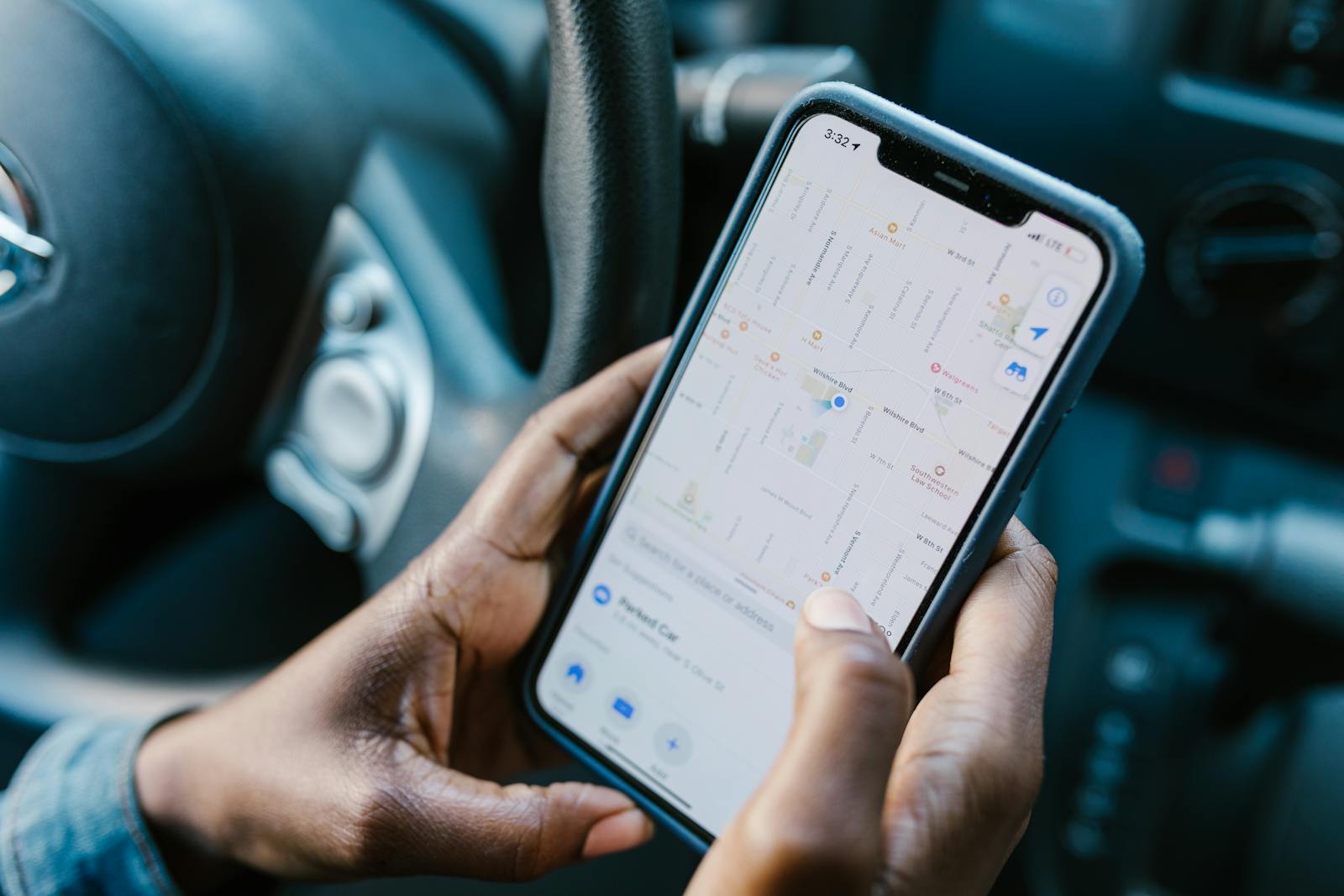
Navigating your iPhone’s location settings can sometimes be tricky, especially with recent iOS updates. Many apps need access to your location to function properly, from maps and weather to food delivery and rideshare services. To turn on location services on your iPhone, go to Settings > Privacy & Security > Location Services, then toggle the switch to the On position. This simple step enables your phone to use GPS, Bluetooth, and Wi-Fi hotspots to determine your approximate location.
If you need more precise control, you can manage location permissions for individual apps within this same menu. For each app, you can choose whether to allow location access always, only while using the app, or never. Apple has enhanced these privacy features to give users more control over their personal data.
How to Turn on Location on iPhone
Location Services allow apps and websites to use information from cellular, Wi-Fi, GPS, and Bluetooth to determine your approximate location. This is essential for apps like Maps, Weather, Find My, and many others.
Steps to Turn on Location Services
1. Open Settings
- Tap the Settings app on your iPhone’s home screen.
2. Go to Privacy & Security
- Scroll down and tap Privacy & Security.
3. Tap Location Services
- At the top, you’ll see Location Services. Tap it.
4. Enable Location Services
- Toggle the switch next to Location Services to the ON position (green).
How to Manage Location Access for Individual Apps
- Under the Location Services toggle, you’ll see a list of apps.
- Tap any app to choose its location access:
- Never — The app cannot access your location.
- Ask Next Time Or When I Share — The app will ask for permission each time.
- While Using the App — The app can access your location only when it’s open.
- Always — The app can access your location even in the background.
Additional Tips
- System Services: Scroll down to System Services to manage location settings used by system features like Emergency Calls, Find My iPhone, and more.
- Precise Location: For apps that support it, you can toggle Precise Location on or off to control whether the app gets your exact location or an approximate area.
- Location Indicator: When an app accesses your location, a small arrow appears in the status bar.
Summary
Turning on Location Services on your iPhone is quick and easy through the Settings app under Privacy & Security. You can control which apps have access to your location and customize permissions for privacy and battery efficiency.
Key Takeaways
- Location Services can be enabled through Settings > Privacy & Security > Location Services on your iPhone
- Individual apps can be set to access your location always, only while using the app, or never
- You can toggle Precise Location on or off for specific apps depending on whether they need your exact coordinates
Enabling Location Services on iPhone
Location Services is a core iPhone feature that powers maps, weather updates, and location-sharing apps. When properly configured, your iPhone can provide accurate location data while still maintaining your privacy preferences.
Understanding Location Services
Location Services on iPhone uses GPS, Bluetooth, Wi-Fi hotspots, and cellular towers to determine your approximate location. This technology enables many helpful features like turn-by-turn navigation, local weather forecasts, and finding nearby restaurants or stores.
Privacy is built into the system. When an app requests your location for the first time, iOS displays a prompt asking for permission. You can choose “Allow While Using App,” “Allow Once,” or “Don’t Allow” based on your comfort level.
Some apps need location access to function properly. Navigation apps like Maps need your position to provide directions. Weather apps use location to show local forecasts. Photo apps can tag images with location data if permitted.
Navigating to Location Settings
To manage Location Services, open the Settings app on your iPhone home screen. Scroll down and tap “Privacy & Security,” then select “Location Services” near the top of the menu.
This screen displays the main Location Services toggle switch. When turned on, apps can request location access. When off, no apps can access your location data, which may limit functionality of many apps.
Below the main toggle, you’ll see a list of all installed apps that have requested location access. Each app shows its current permission status: “Never,” “Ask Next Time,” “While Using,” or “Always.”
To adjust an individual app’s settings, simply tap its name. You can then modify permissions based on how you use that specific app.
Activating Precise Location
For many location-based apps, you can choose between Precise Location and Approximate Location. Precise Location provides your exact coordinates, while Approximate Location gives only a general area.
To adjust this setting, go to Settings > Privacy & Security > Location Services, then select a specific app. Look for the “Precise Location” toggle. When enabled, the app receives your exact location. When disabled, it gets only a general area.
Critical services like emergency calls always use precise location regardless of settings. This ensures help can find you quickly during emergencies.
For navigation apps like Maps, enabling Precise Location provides the most accurate directions. For weather apps or store finders, Approximate Location often works well while better protecting privacy.
Troubleshooting Location Issues on iPhone
When Location Services stop working on your iPhone, it can affect many apps and features that rely on your position. Several simple fixes can resolve most location-related problems without requiring technical expertise.
Common Location Service Glitches
Location Services might stop working on your iPhone for various reasons. One of the most common fixes is simply restarting your device, which can clear temporary software glitches affecting the GPS system.
Check if the date and time settings are correct. Go to Settings > General > Date & Time and enable “Set Automatically.” Incorrect time settings often prevent location features from working properly.
Make sure Location Services is actually turned on. Navigate to Settings > Privacy & Security > Location Services and toggle it on. If it’s already on, try turning it off, wait 10 seconds, then turn it back on.
For iPhone 16 users experiencing problems, go to Settings > Privacy & Security > Location Services > Share My Location and set it to “this device.” This has fixed issues for many users after upgrading.
Resolving Connectivity Problems
Poor network connections often cause location problems. Check if Airplane Mode is accidentally enabled – if so, turn it off from Control Center or Settings.
Try toggling Wi-Fi and Cellular Data off and on. Poor internet connectivity can prevent your phone from properly determining your location.
Disable Low Data Mode or Low Power Mode:
- Go to Settings > Cellular > Cellular Data Options
- Turn off Low Data Mode if enabled
- Similarly, disable Low Power Mode in Settings > Battery
If you’re using Find My app or sharing your location with friends and it shows “Location Not Available,” check your network connection and ensure that Share My Location is enabled in Location Services settings.
Resetting Location and Privacy
When simple fixes don’t work, resetting your location and privacy settings often solves persistent problems:
- Go to Settings > General > Transfer or Reset iPhone
- Tap Reset
- Select “Reset Location & Privacy”
- Enter your passcode if prompted
This will return all location permissions to factory defaults. You’ll need to reapprove location access for each app, but it often fixes stubborn location issues.
Check app-specific permissions too. Some apps need “Always” or “While Using” permission to function properly. Review these in Settings > Privacy & Security > Location Services.
For GPS accuracy problems, toggle “Precise Location” on for essential apps like maps and navigation services.
Utilizing Apple Support
If location problems persist after trying all troubleshooting steps, check if your iOS needs updating. Go to Settings > General > Software Update to install any available updates for your iPhone.
Hardware issues might be the culprit if software solutions don’t work. The GPS antenna could be damaged, especially after dropping your phone or exposing it to water.
Contact Apple Support through their website, app, or visit an Apple Store if problems continue. They can run diagnostics to determine if your device has hardware problems requiring repair.
Before contacting support, prepare by noting when the problem started, which apps are affected, and what troubleshooting steps you’ve already tried. This information helps support representatives resolve your issue more efficiently.
Frequently Asked Questions
Location Services on iPhones can sometimes be confusing to manage. Here are answers to common questions about turning location on or off, troubleshooting problems, and managing privacy settings.
How can I enable Location Services on my iPhone?
To enable Location Services on an iPhone, open the Settings app from the home screen. Scroll down and tap on “Privacy & Security,” then select “Location Services” at the top of the menu.
Toggle the switch next to “Location Services” to the ON position (green). This activates the phone’s GPS and location tracking capabilities for all apps that have permission.
What are the steps to turn on location tracking on an iPhone?
First, go to Settings > Privacy & Security > Location Services and make sure the main toggle is switched on. Then scroll down to see all apps that use location.
Select each app individually to customize its location permissions. Options typically include “Never,” “Ask Next Time,” “While Using the App,” or “Always.” Choose the appropriate setting for each app based on your needs.
Why are Location Services not functioning on my iPhone?
If Location Services aren’t working properly, try restarting your iPhone first. This often resolves temporary system glitches affecting location functionality.
Check if your date and time settings are correct by going to Settings > General > Date & Time. Incorrect time zone settings can interfere with location services.
Another potential fix is to toggle Location Services off and on again. You might also need to enable the Compass Calibration feature or check if your cellular data or Wi-Fi is functioning properly.
How do I disable my iPhone’s location without sending a notification?
Unfortunately, there isn’t a way to completely turn off location services without the possibility of apps detecting this change. Apps that regularly track location may notice when their permissions change.
However, you can minimize tracking by choosing “While Using the App” instead of “Always” for most applications. This limits when apps can access your location without completely disabling the feature.
What should I do if my location is inaccurately displayed on my iPhone?
If your location appears inaccurate, check if Precise Location is enabled for specific apps. Go to Settings > Privacy & Security > Location Services, select the app, and ensure “Precise Location” is toggled on.
Try calibrating your compass by opening the Compass app and following the on-screen instructions. This can improve location accuracy in many cases.
Make sure you’re in an area with good GPS reception. Tall buildings, being indoors, or bad weather can all affect GPS accuracy and cause your location to appear incorrect.
How can I access and adjust my iPhone’s location settings?
The main location settings can be found at Settings > Privacy & Security > Location Services. From here, you can manage global location settings and app-specific permissions.
For more granular control, tap on individual apps in this menu to set whether they can access your location never, while using the app, or always. You can also toggle Precise Location for each app, which determines if apps get your exact location or just a general area.