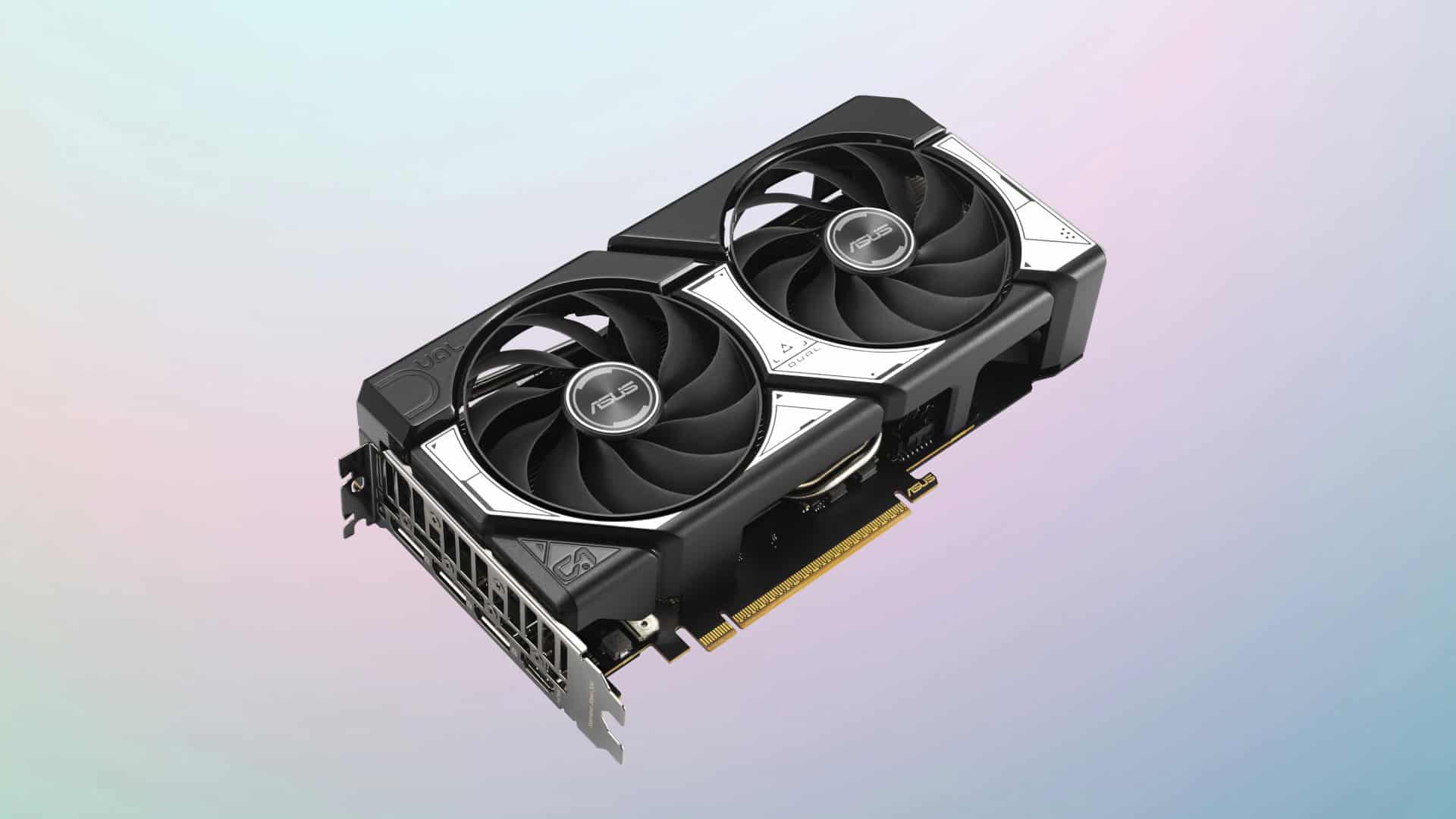
Hardware accelerated GPU scheduling is a Windows feature that promises to improve graphics performance by changing how your computer handles GPU tasks. Instead of having the CPU manage all graphics tasks, this feature lets the GPU take over some of the scheduling work directly. Whether you should turn this setting on or off depends largely on your system specs and what you use your computer for.
Many users report mixed results when enabling this feature. Some notice smoother gameplay and better overall performance, while others experience no difference or even negative effects like increased RAM usage. Reddit discussions show several gamers turning it off after experiencing no noticeable benefits, with one user specifically mentioning that disabling it fixed performance issues they were having.
Testing this feature on your own system is the best approach. If you’re a gamer or use graphics-intensive applications, try running your favorite programs with the setting both on and off to see which gives you better performance. Pay attention to things like frame rates, load times, and overall system responsiveness to make your decision.
Hardware Accelerated GPU Scheduling: On or Off?
Hardware Accelerated GPU Scheduling (HAGS) is a Windows 10/11 feature that allows your GPU to manage its own memory and scheduling tasks, potentially reducing latency and improving performance.
What is Hardware Accelerated GPU Scheduling?
- Normally, the CPU handles scheduling of graphics tasks for the GPU.
- With HAGS enabled, the GPU takes over this scheduling, which can reduce latency and improve smoothness, especially in gaming and video playback.
Which GPUs Support HAGS?
- NVIDIA: Supported on GTX 10 series and newer.
- AMD: Supported on RX 7700 series and newer (especially on Windows 11).
- Intel: Currently, Intel GPUs do not support HAGS.
Potential Benefits of Enabling HAGS
- Reduced latency in games and apps.
- Slight performance improvements in some titles.
- Smoother video playback and graphics rendering.
- Offloads some CPU workload to GPU, potentially freeing CPU resources.
Potential Downsides or Considerations
- Mixed results: Some users report no difference or slight performance drops.
- Possible compatibility issues with certain games or apps.
- May cause instability or graphical glitches on some systems.
- Benefits vary greatly depending on hardware, drivers, and workload.
How to Enable or Disable Hardware Accelerated GPU Scheduling
- Open Settings > System > Display.
- Scroll down and click Graphics settings.
- Toggle Hardware-accelerated GPU scheduling on or off.
- Restart your PC for changes to take effect.
Should You Turn HAGS On or Off?
- Turn it ON if:
- You have a supported GPU (NVIDIA GTX 10+ or AMD RX 7700+).
- You want to try reducing latency or improving performance in games.
- You experience smooth performance without crashes or glitches.
- Turn it OFF if:
- You notice performance drops, crashes, or graphical glitches after enabling.
- Your GPU or drivers do not officially support HAGS.
- You prefer stability over potential performance gains.
Summary
| Aspect | Recommendation |
|---|---|
| Supported GPU | Enable HAGS |
| Older or unsupported GPU | Keep HAGS off |
| Stable performance | Keep HAGS on if no issues |
| Experiencing issues | Disable HAGS |
| Gaming and latency | Try enabling to test improvements |
Additional Tips
- Keep your GPU drivers up to date for best compatibility.
- Test performance with benchmarking or gaming to see if HAGS helps you.
- If issues arise, simply disable HAGS and restart your PC.
For more detailed info and user experiences, see:
- PCWorld: Should you enable hardware-accelerated GPU scheduling?
- Appuals: Keep Hardware Accelerated GPU Scheduling On or Off?
Key Takeaways
- Hardware accelerated GPU scheduling moves some graphics processing management from the CPU directly to the GPU
- Performance benefits vary widely between systems, with some users seeing improvements while others experience no change or worse performance
- The best approach is to test the feature both on and off with your specific hardware setup and applications
Understanding Hardware Accelerated GPU Scheduling
Hardware Accelerated GPU Scheduling is a Windows feature that changes how your computer manages graphics tasks. It moves some work from your CPU to a dedicated GPU scheduler, potentially improving performance in graphics-intensive applications.
Evolution of GPU Scheduling
GPU scheduling has changed significantly over the years. In traditional systems, the CPU handled most of the work related to graphics processing. It had to manage, prioritize, and queue graphics tasks before sending them to the GPU.
With Windows Display Driver Model (WDDM) 1.0, introduced in Windows Vista, the operating system began handling some graphics memory management. This improved stability but created a bottleneck as the CPU still needed to process each graphics command.
Later WDDM versions gradually improved this process. WDDM 2.0 in Windows 10 brought better multi-tasking capabilities for GPUs. Finally, WDDM 2.7 introduced Hardware Accelerated GPU Scheduling, marking a significant shift in how Windows handles graphics processing tasks.
How Hardware Accelerated GPU Scheduling Works
When enabled, Hardware Accelerated GPU Scheduling transfers most scheduling responsibilities from the CPU to a dedicated hardware scheduler on the graphics card. This change is significant for processing efficiency.
In the traditional model, your CPU receives graphics commands, batches them, and then sends them to the GPU. This creates extra work for the processor and can introduce latency.
With hardware acceleration, your graphics card takes over much of this management. The GPU’s dedicated scheduler can prioritize and process tasks directly, reducing CPU overhead.
Think of it like having a specialized assistant handling graphics tasks rather than making your main manager (the CPU) handle everything. This should theoretically lead to lower latency and more consistent frame rates in games and graphics applications.
Compatibilities and Requirements
To use Hardware Accelerated GPU Scheduling, your system needs to meet specific requirements:
- Windows 10 version 2004 (May 2020 Update) or newer
- A compatible graphics card with updated drivers
- WDDM 2.7 or newer driver model
Compatible Graphics Cards:
- NVIDIA: GTX 1000 series (Pascal) or newer
- AMD: Radeon 5000 series (RDNA) or newer
- Intel: Iris Xe and newer integrated graphics
Your graphics card manufacturer must provide drivers that support this feature. Most recent GPUs from major manufacturers work well, but older hardware may not support it.
Remember that just because your system can enable this feature doesn’t mean you should. Performance benefits vary widely between different hardware configurations and applications.
Enabling and Configuring in Windows
Windows offers several methods to enable hardware-accelerated GPU scheduling, giving users flexibility based on their comfort level with system settings. The feature can be accessed through simple GUI options or more advanced configuration methods.
Activating Through Graphics Settings
In Windows 10, users can enable hardware-accelerated GPU scheduling by navigating to Settings > System > Display > Graphics Settings. At the bottom of this menu, they’ll find the toggle switch for this feature.
For Windows 11 users, the path is slightly different. They need to go to Settings > System > Display > Graphics, then click on “Change Default Graphics Settings” where the hardware acceleration option appears.
After enabling this feature, a system restart is recommended for the changes to take full effect. Some users may not see this option if their GPU drivers aren’t updated or if their hardware doesn’t support the feature.
Advanced Configuration via Registry Editor
For users whose systems don’t show the GPU scheduling option in settings, the Registry Editor provides an alternative method.
To access this:
- Press Win+R and type
regeditto open Registry Editor - Navigate to
HKEY_LOCAL_MACHINE\SYSTEM\CurrentControlSet\Control\GraphicsDrivers - Right-click in the right pane and create a new DWORD (32-bit) Value
- Name it
HwSchModeand set the value to2to enable or1to disable
This method requires caution, as incorrect registry modifications can cause system problems. Creating a registry backup before proceeding is strongly recommended.
Command Prompt Tweaks for GPU Scheduling
Power users might prefer using Command Prompt for enabling or modifying GPU scheduling settings. This method works well for remote administration or troubleshooting.
To check the current status, open Command Prompt as administrator and enter:
reg query "HKLM\SYSTEM\CurrentControlSet\Control\GraphicsDrivers" /v HwSchMode
To enable GPU scheduling through Command Prompt:
reg add "HKLM\SYSTEM\CurrentControlSet\Control\GraphicsDrivers" /v HwSchMode /t REG_DWORD /d 2 /f
This method can also be incorporated into batch files for system setup or maintenance tasks. Remember that like registry edits, these commands require administrator privileges to execute.
Performance Implications and Gaming
Hardware-accelerated GPU scheduling affects both gaming performance and general system behavior differently depending on your setup. The feature aims to reduce latency and improve performance, but results can vary significantly based on your specific hardware combination.
Impact on Gaming Performance
Gaming performance with hardware-accelerated GPU scheduling enabled shows mixed results across different systems. For some users, enabling this feature may create smoother gameplay with fewer frame drops in graphically demanding titles. The technology works by allowing the GPU to manage its own memory rather than relying on the CPU.
However, not all games benefit equally. Older games might not show any noticeable difference, while newer titles that are optimized for modern hardware architecture could see improvements. In some cases, users have reported a slight increase in FPS (frames per second) when playing at higher resolutions.
Testing is crucial since results vary by game and hardware combination. Some gamers with mid-range systems report better performance with the feature turned off rather than on.
Improving General System Performance
Beyond gaming, hardware-accelerated GPU scheduling can benefit overall system responsiveness. The feature was designed to reduce CPU load during graphically intensive tasks by shifting some scheduling responsibilities directly to the GPU.
For multitasking scenarios, this can translate to smoother performance when running multiple applications simultaneously. Video editing software, 3D rendering programs, and other GPU-dependent applications may experience reduced latency with this feature enabled.
The most noticeable improvements typically appear on systems where the CPU previously acted as a bottleneck. By offloading some work from the CPU to the GPU, the processor becomes free to handle other tasks more efficiently.
Users with integrated graphics might see less dramatic benefits compared to those with dedicated GPUs.
When to Disable Hardware Accelerated GPU Scheduling
Despite potential benefits, certain situations call for disabling this feature. If you experience screen flickering, application crashes, or unusual system behavior after enabling GPU scheduling, turning it off may resolve these issues.
Older systems or those with budget GPUs sometimes perform worse with this feature enabled. The additional overhead required to manage the scheduling can occasionally outweigh the benefits on less capable hardware.
Some users report compatibility issues with specific applications or games. If you notice stuttering, graphical glitches, or inconsistent performance in particular software, disabling the feature might help.
Testing both settings with your specific hardware and software combination remains the most reliable approach. Try benchmarking your favorite games and applications with the feature both on and off to determine which setting works best for your system.
Frequently Asked Questions
Hardware accelerated GPU scheduling can impact system performance in various ways, with both potential benefits and drawbacks. Users often have specific questions about this feature based on their unique setup and usage patterns.
What are the benefits of turning on hardware accelerated GPU scheduling for gaming?
Hardware accelerated GPU scheduling can reduce input latency in games, which is helpful for competitive gaming. This feature allows the GPU to manage its own memory instead of relying on the CPU.
For systems with lower-end CPUs, enabling this feature may provide more noticeable benefits by reducing CPU bottlenecks. Some users report smoother gameplay and better overall performance in CPU-intensive games.
Are there any disadvantages to enabling hardware accelerated GPU scheduling in Windows 10?
Some users experience no performance improvement or even slight performance decreases when enabling this feature. This is particularly true for well-balanced systems where the CPU wasn’t a bottleneck to begin with.
Compatibility issues may arise with certain games or applications, leading to crashes or graphical glitches. Older hardware might not fully support this feature, resulting in unexpected behavior.
How does hardware accelerated GPU scheduling impact system performance in Windows 11?
Windows 11 has improved hardware accelerated GPU scheduling implementation compared to Windows 10. The feature tends to work more reliably with fewer compatibility issues.
System responsiveness during heavy GPU loads may improve on Windows 11 with this feature enabled. Users typically report reduced input lag and smoother multitasking when running graphics-intensive applications.
Can enabling hardware accelerated GPU scheduling improve frame rates in games like CS and Valorant?
The impact on frame rates in competitive games like CS and Valorant varies by system configuration. Most users report minimal changes in maximum frame rates, but potentially more stable frame times.
The main benefit for these games tends to be reduced input latency rather than higher FPS. Players who prioritize competitive advantage might notice improvements in responsiveness rather than raw performance numbers.
When should I consider disabling hardware accelerated GPU scheduling?
If you experience new system instability, crashes, or graphical glitches after enabling the feature, disabling it may resolve these issues. Systems that run perfectly fine without it may not need this feature enabled.
Users with older GPUs or those running specialized applications with specific GPU requirements might want to keep it disabled. Testing performance with the feature both on and off is recommended to determine what works best for your specific setup.
What effect does hardware accelerated GPU scheduling have on graphics-intensive applications?
For creative applications like video editing software and 3D rendering programs, hardware accelerated GPU scheduling can improve timeline scrubbing and preview performance. The reduced CPU overhead may allow for smoother operation during complex tasks.
In some cases, memory-intensive applications benefit from letting the GPU handle its own scheduling. Professionals working with large files or multiple applications simultaneously might see improved multitasking capabilities.